Optionia DocsOptionia Docs
Submit a Ticket
shopify app store
  • Visit Optionia Website
  • Privacy Policy
  • Terms of Service
  • FAQs
  • Tutorials

© 2026 Optionia. All rights reserved.

Powered by

ParseLab, LLC
  • category-iconGetting Started
  • category-iconOption Sets
  • category-iconOrders
  • category-iconSettings
  • category-iconConfiguration
  • category-iconLive Preview
  • category-iconPackages
  • category-iconHelp & Support
  • category-iconPrice Add-Ons
  • category-iconConditional Logic
  • category-iconDesign Theme Styling
  • category-iconUninstallation
Category
  • category-iconGetting Started
  • category-iconOption Sets
  • category-iconOrders
  • category-iconSettings
  • category-iconConfiguration
  • category-iconLive Preview
  • category-iconPackages
  • category-iconHelp & Support
  • category-iconPrice Add-Ons
  • category-iconConditional Logic
  • category-iconDesign Theme Styling
  • category-iconUninstallation
Price Add-Ons-icon Price Add-Ons
2 min to read
Last Update on 07 September 2026

Set Up an Additional Price for Image Swatch

Adding extra charges to Image Swatches lets you pass along costs for custom patterns, detailed prints, or complex textures.


Step-by-Step Guide

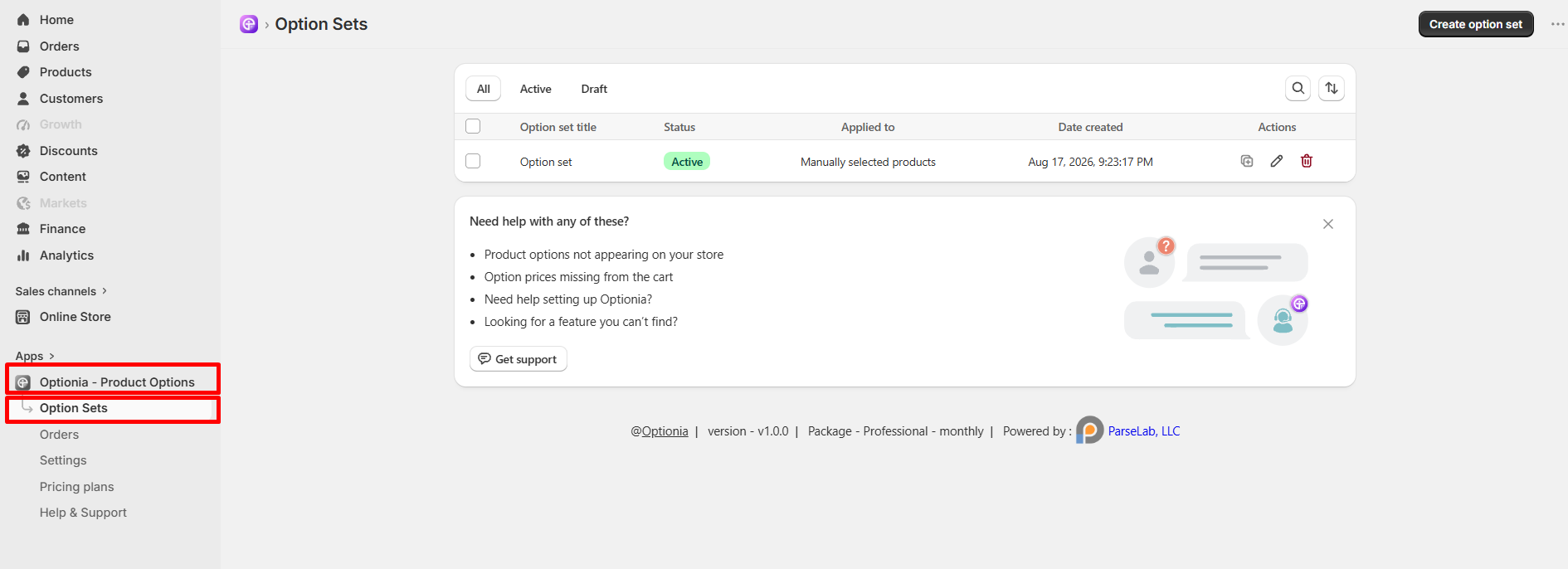
Step 1: Open Optionia


Log in to your Shopify Admin, go to Apps > Optionia - Product Options, and select Option Sets.
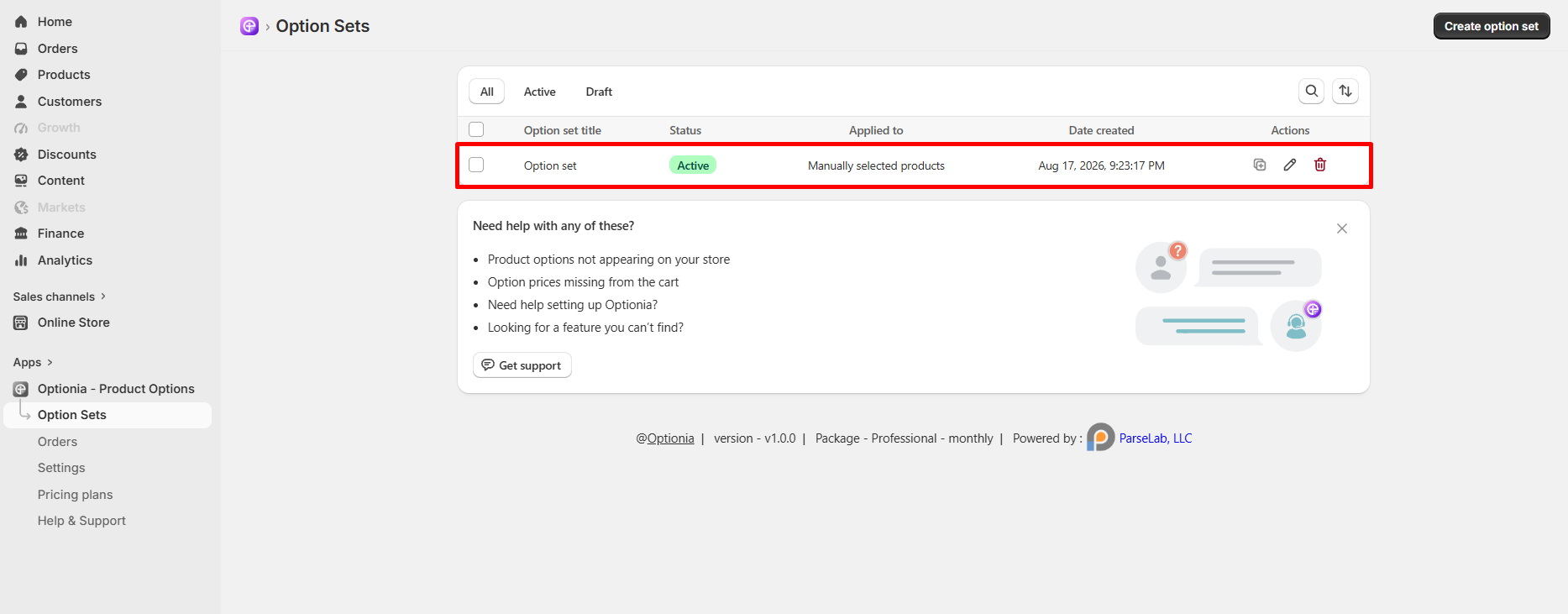
Step 2: Choose Your Option Set


Click on an existing Option set to edit it, or click Create option set at the top right to make a new one.

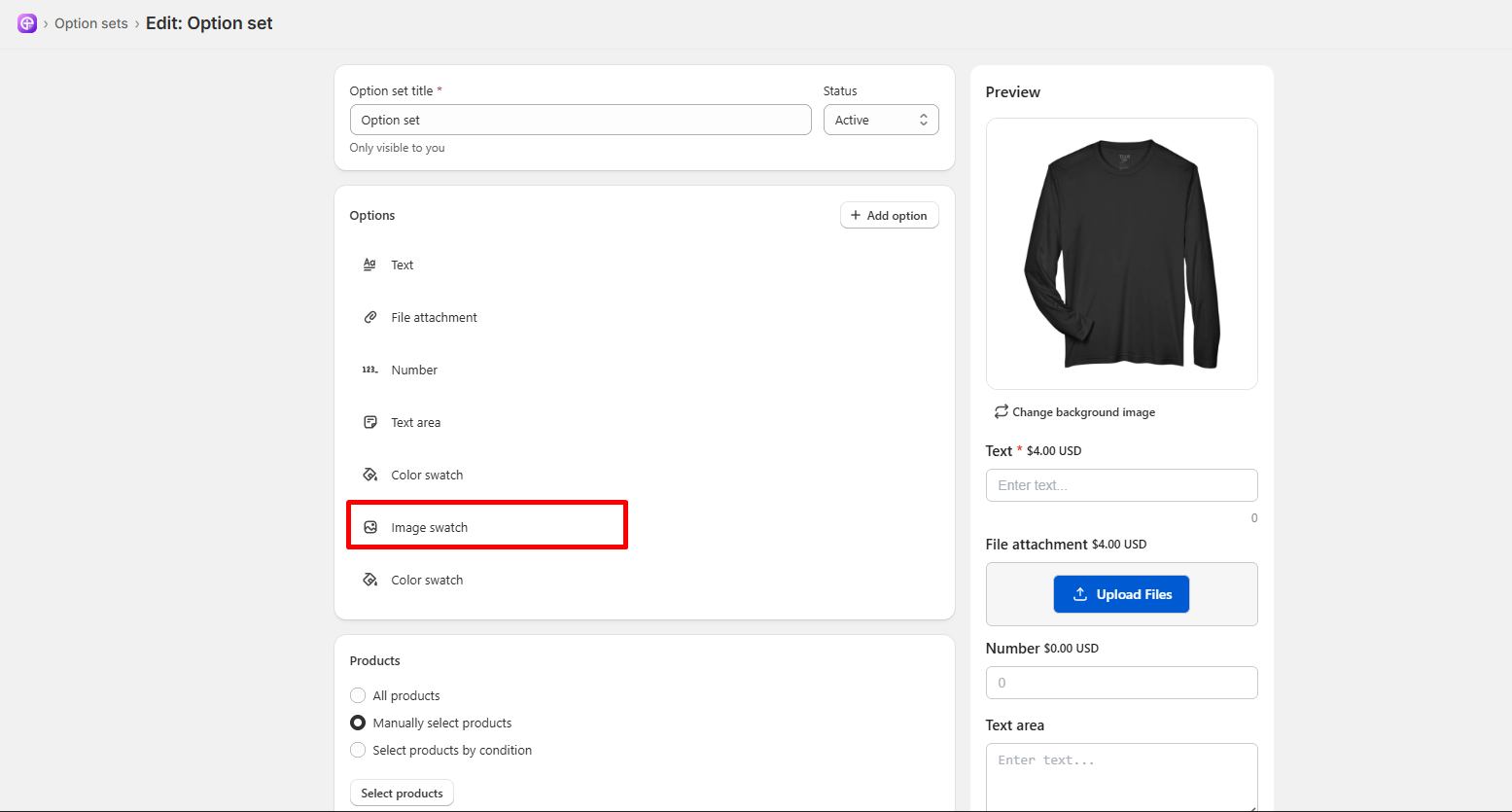
Step 3: Select or Add Image Swatch


Under the Options section, click on your Image Swatch option (or click + Add option and choose Image Swatch).
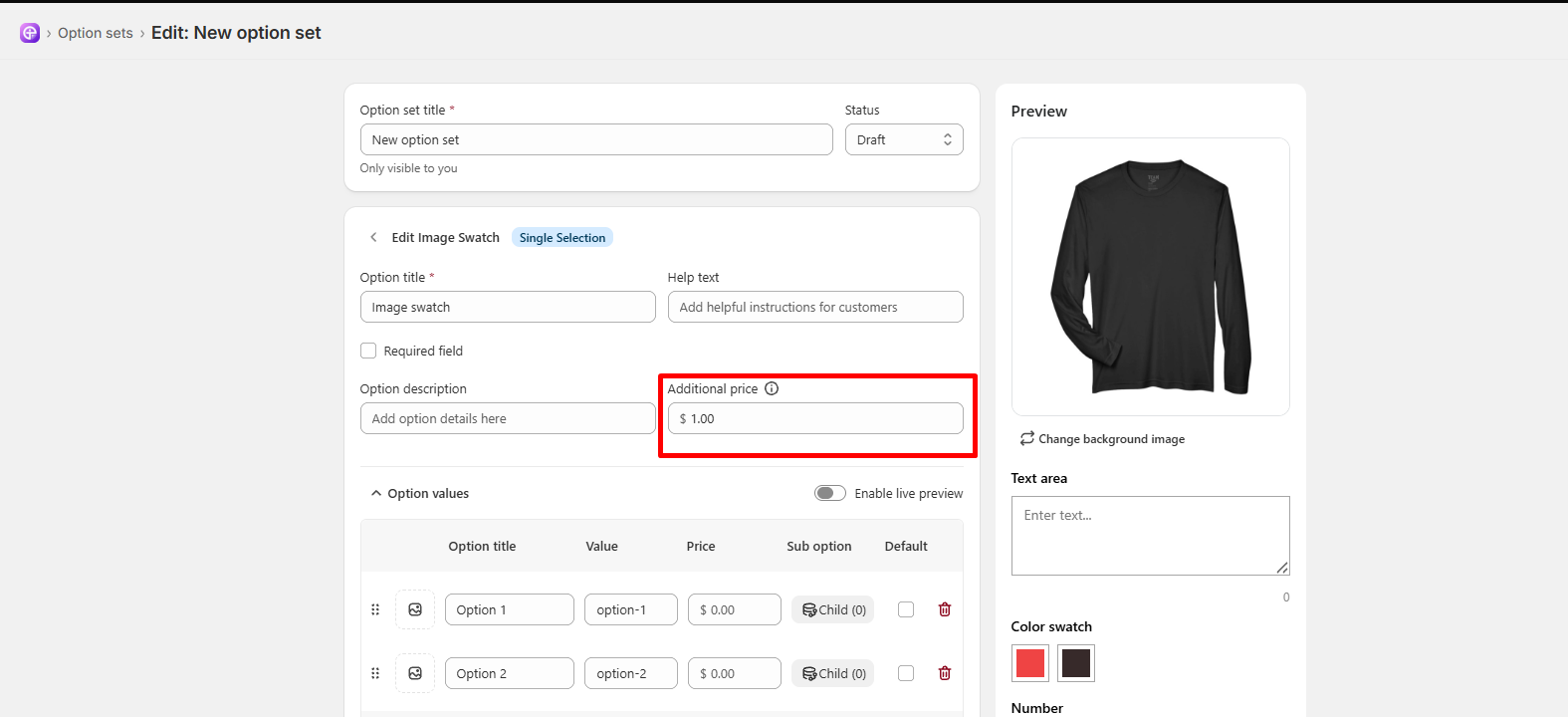
Step 4: Set Your Extra Prices

  • Flat Base Fee (Additional Price): Enter a fee in the Additional price box near the top to charge a flat cost whenever any image swatch is selected (e.g., 5.00).
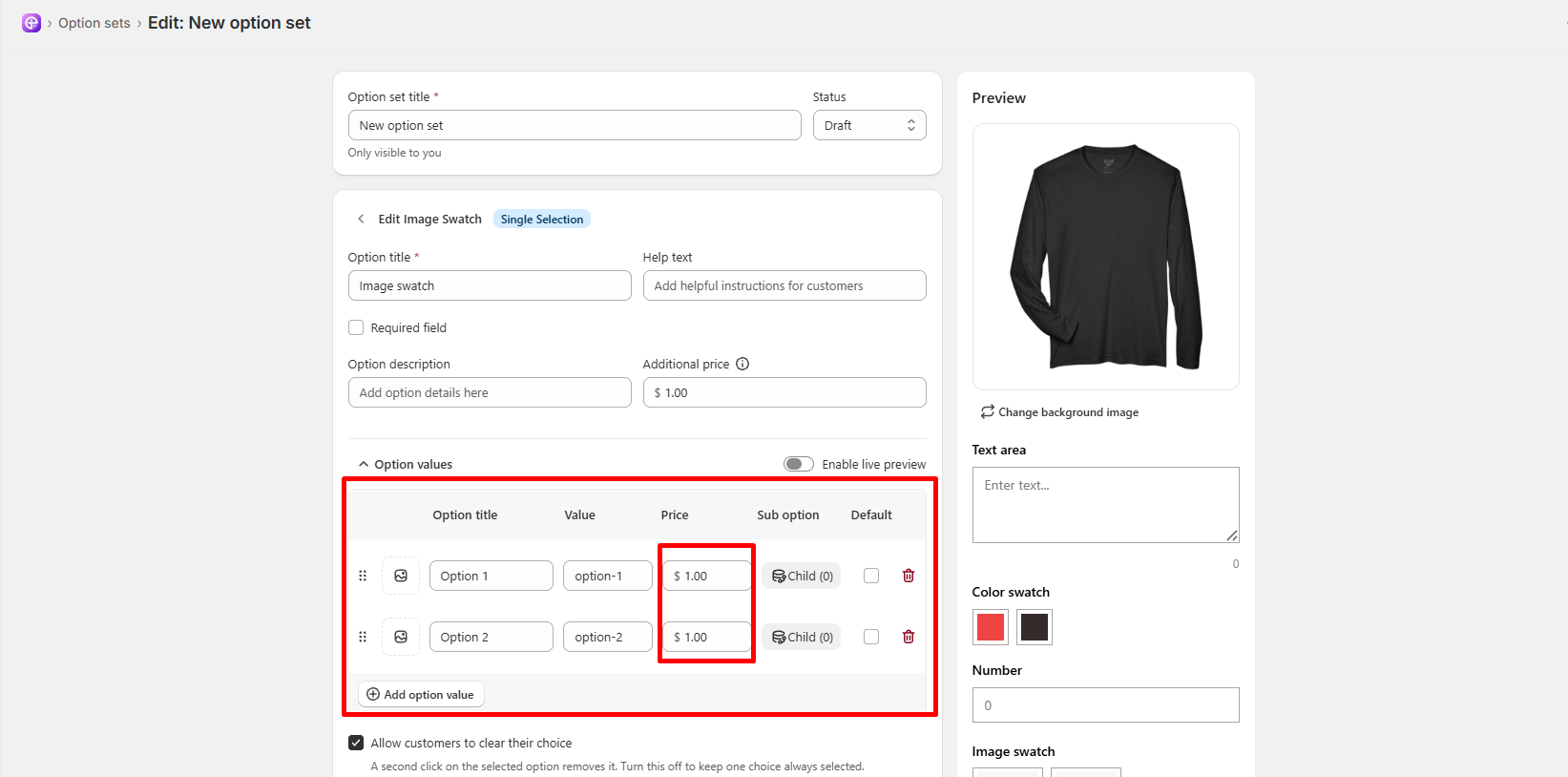
  • Price Per Image (Option Values): Scroll to the Option values table. Enter specific extra amounts in the Price column next to each image choice (e.g., 0.00 for standard patterns, 4.00 for custom printed patterns).
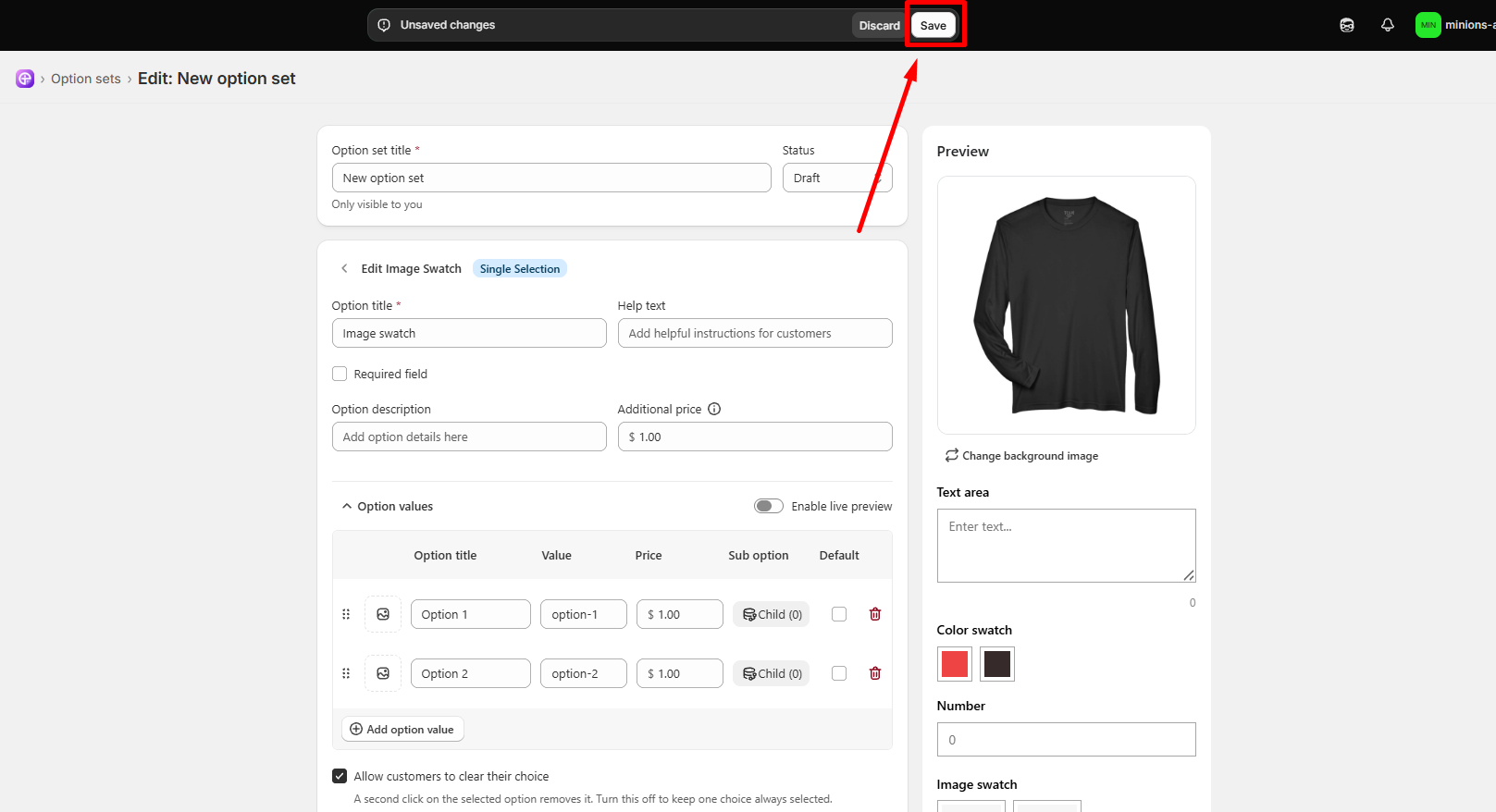
Step 5: Save Changes


Click the white Save button in the top bar to apply the new pricing.


Note: The extra cost for any selected image swatch will automatically update the total price on your product page and inside the customer's cart!

Need Help?

If you have any questions or need assistance, We will be happy to help.
  • Live Chat for quick assistance.
  • Submit a Support Ticket for detailed questions or issues.
  • Email: support@optionia.com

Did this post help you?
Previous article
Set Up an Additional Price for Number
Next article

Set Up an Additional Price for File Attachments

Related Articles

  • Set Up an Additional Price for Date Picker
  • Set Up an Additional Price for Color Swatch
  • Set Up an Additional Price for Number
  • Set Up an Additional Price for File Attachments
  • Set Up an Additional Price for Text & Text area

Related Articles

  • Set Up an Additional Price for Date Picker
  • Set Up an Additional Price for Color Swatch
  • Set Up an Additional Price for Number
  • Set Up an Additional Price for File Attachments
  • Set Up an Additional Price for Text & Text area