Adding an extra charge to file attachments allows you to cover production, printing, or handling costs whenever customers upload custom photos, designs, or documents on your product pages.
When you enable file uploads on a product, Optionia allows you to set a custom add-on fee. This fee is automatically added to the base price of the item as soon as a customer selects and uploads a file before adding the product to their cart.
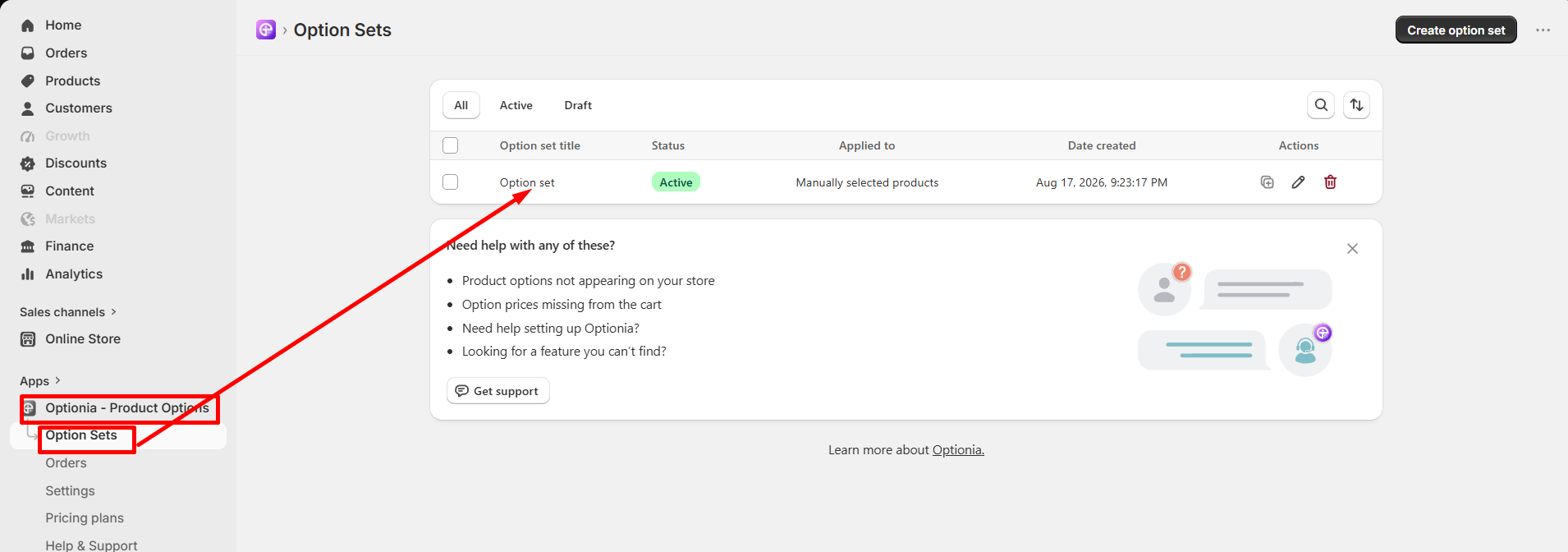
From your Shopify Admin dashboard, navigate to Apps > Optionia - Product Options and click on Option Sets in the left menu.
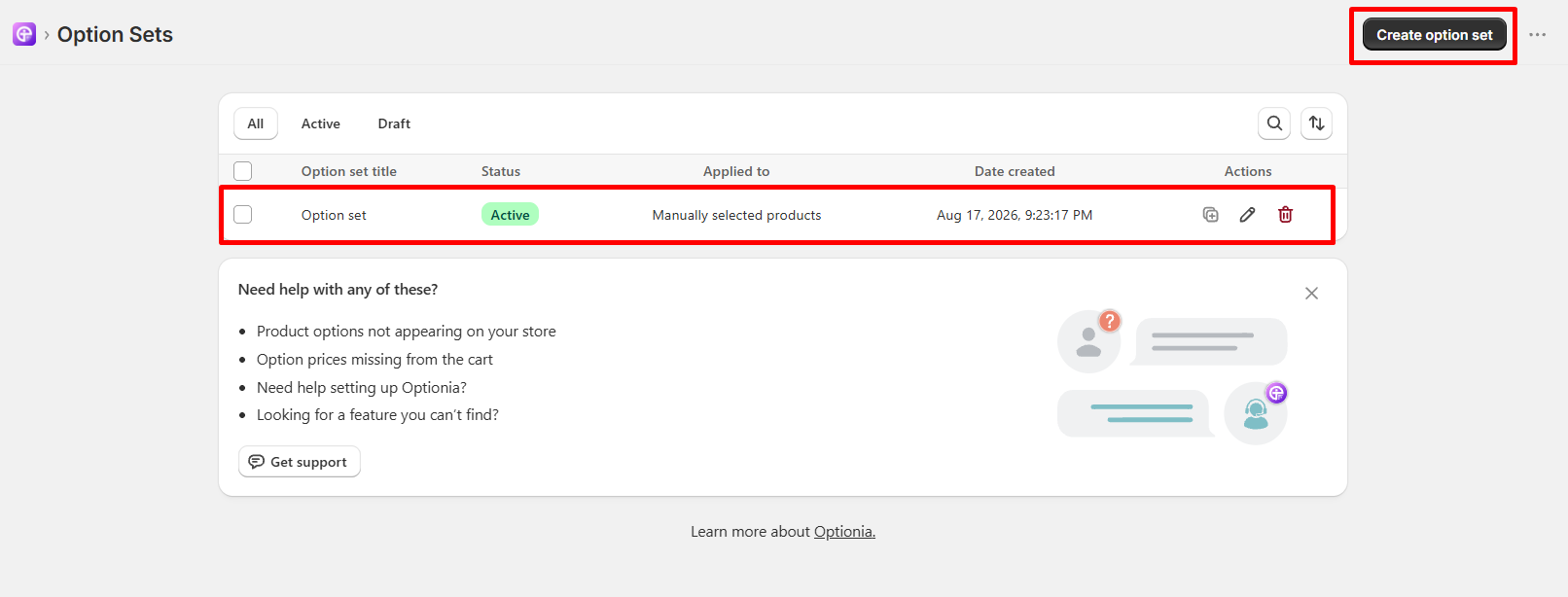
Click on the specific Option Set you wish to edit, or click Create option set to build a new one.
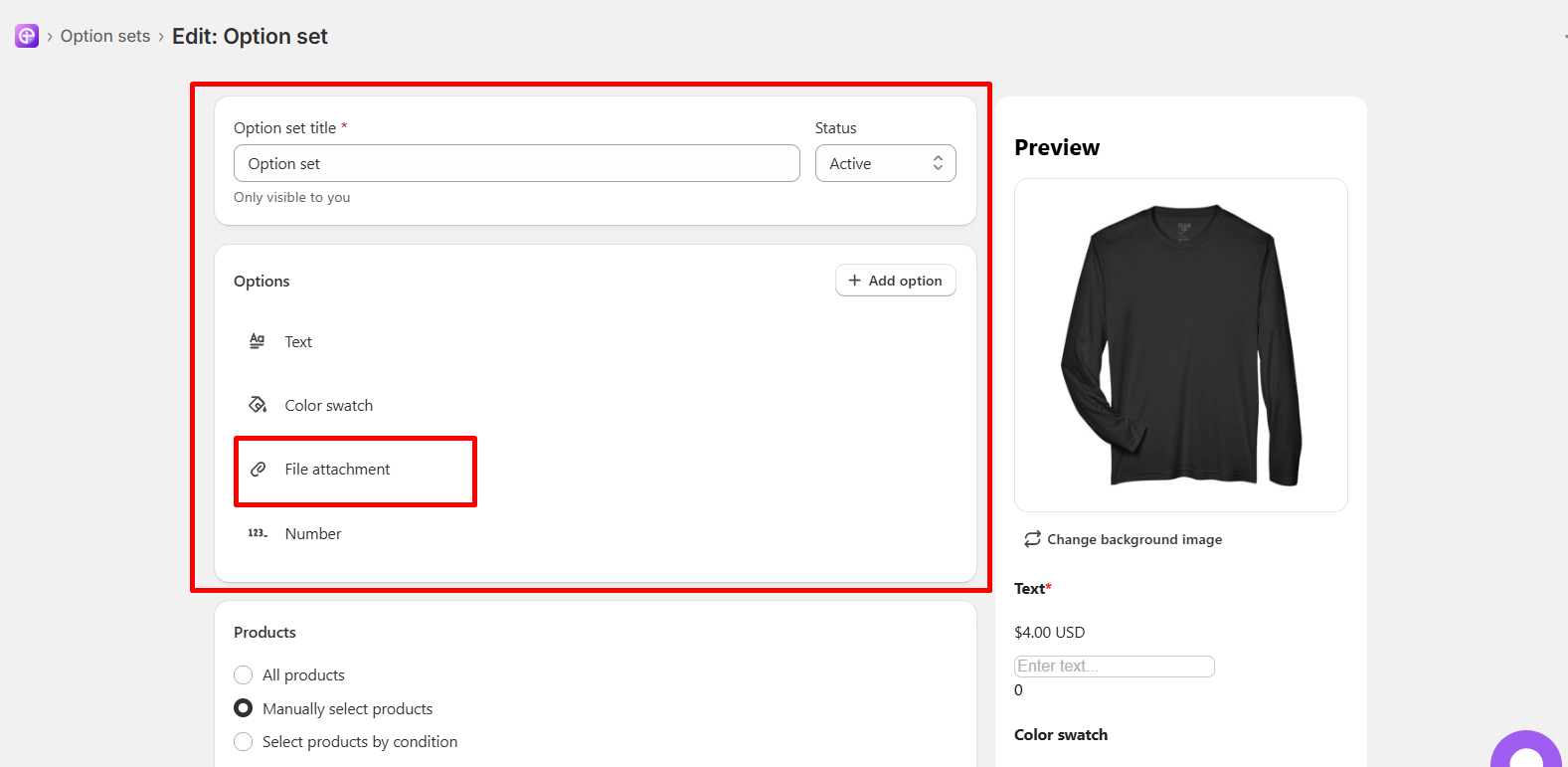
Under the Options block, click on an existing File attachment option to open its settings (or click + Add option and select File attachment if you haven't created one yet).
Scroll down to the Attachment price field and enter the extra amount you want to charge for uploaded files (for example, enter 5 to add a $5.00 extra charge).
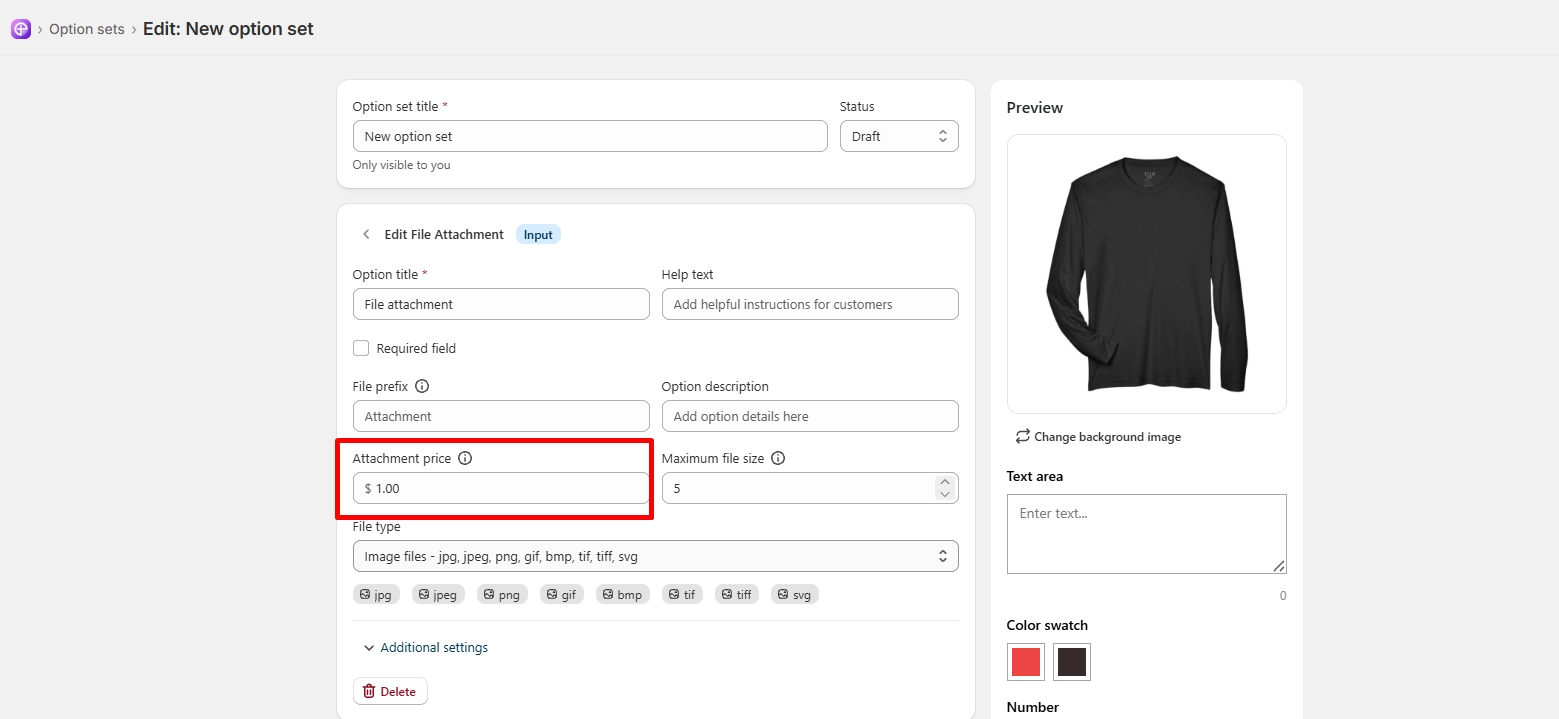
While editing your file attachment, you can also set up:
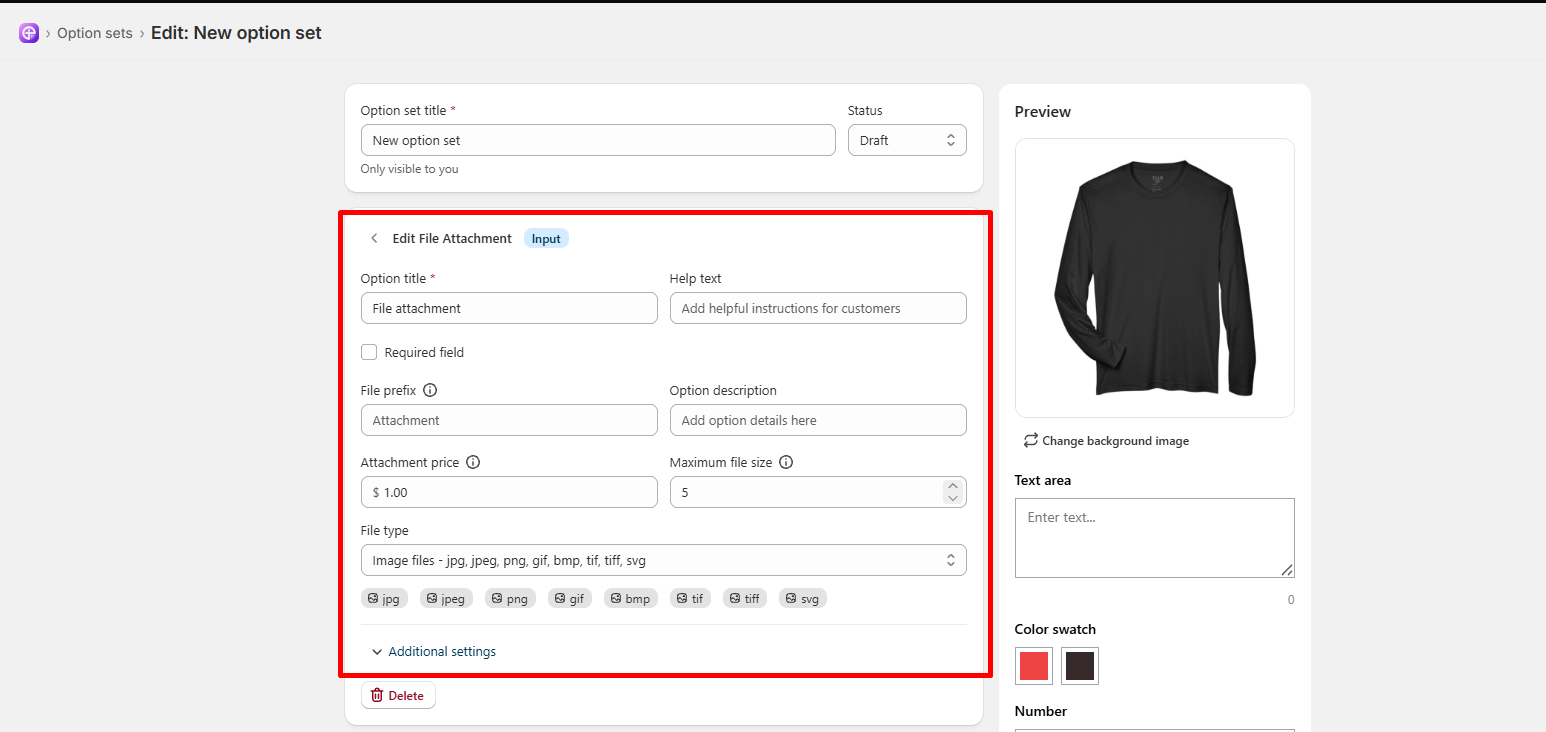
Option title: Name the upload field visible to customers (e.g., "Upload Your Logo").
Help text / Description: Add instructions so customers know what image quality or design to submit.
Required field: Check this box if uploading a file is mandatory to complete the order.
Maximum file size & File types: Set upload limits (e.g., up to 5MB) and acceptable file formats (like JPG, PNG, or PDF).
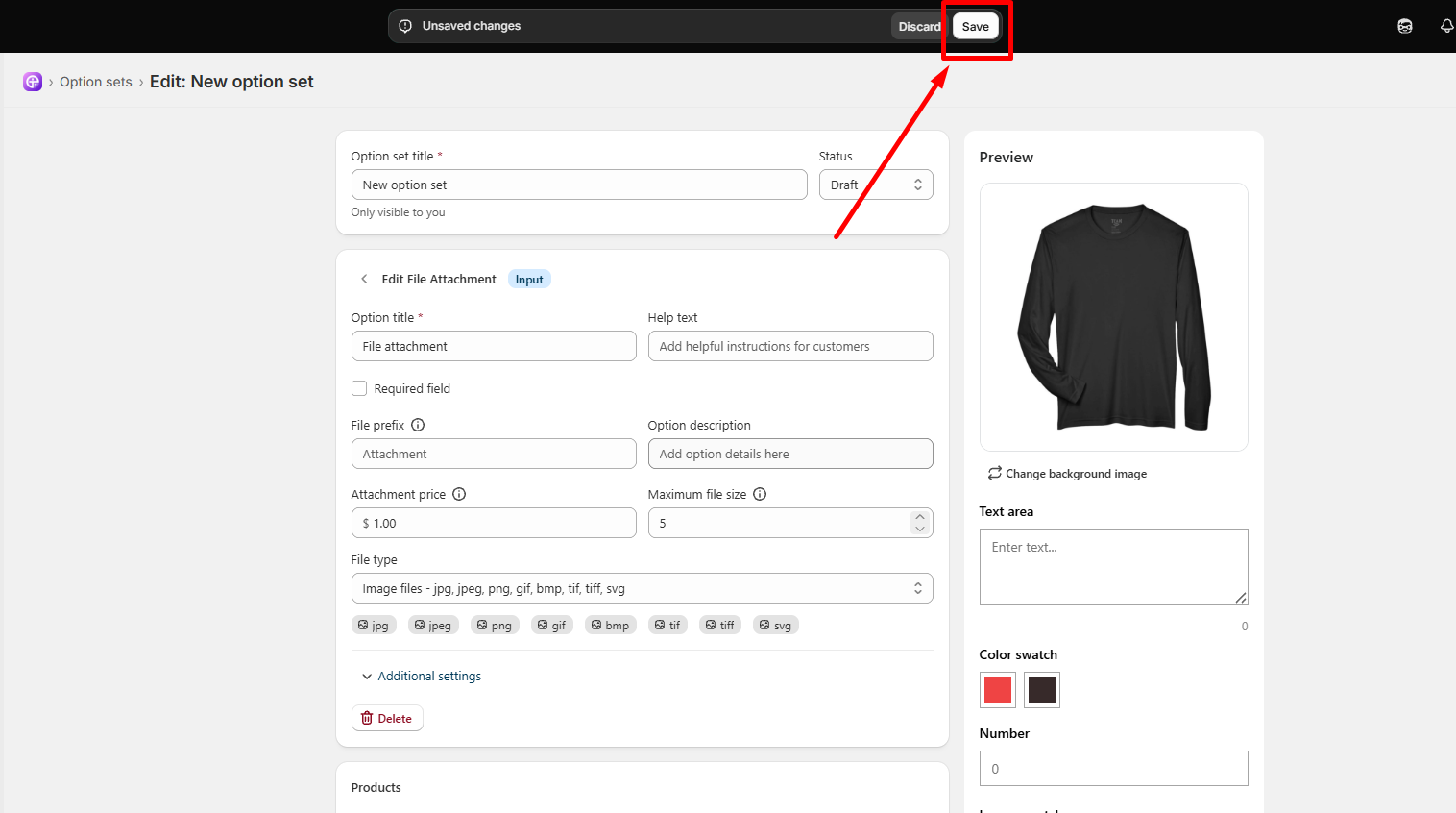
Click the Save button in the top banner to apply your pricing changes to your live storefront.
|
Note: The extra fee is dynamically added to the product price on the store page. Customers will see the updated total in their cart and checkout summary. |
 Getting Started
 Option Sets
 Orders
 Settings
 Configuration
 Live Preview
 Packages
 Help & Support
 Price Add-Ons
 Conditional Logic
 Design Theme Styling
 Uninstallation