You can charge customers an extra fee when they enter short custom text on your product page (for example, adding a name or initials for custom embroidery).
Go to your Shopify Admin page. Look at the left side, click Apps, choose Optionia - Product Options, and then click Option Sets.
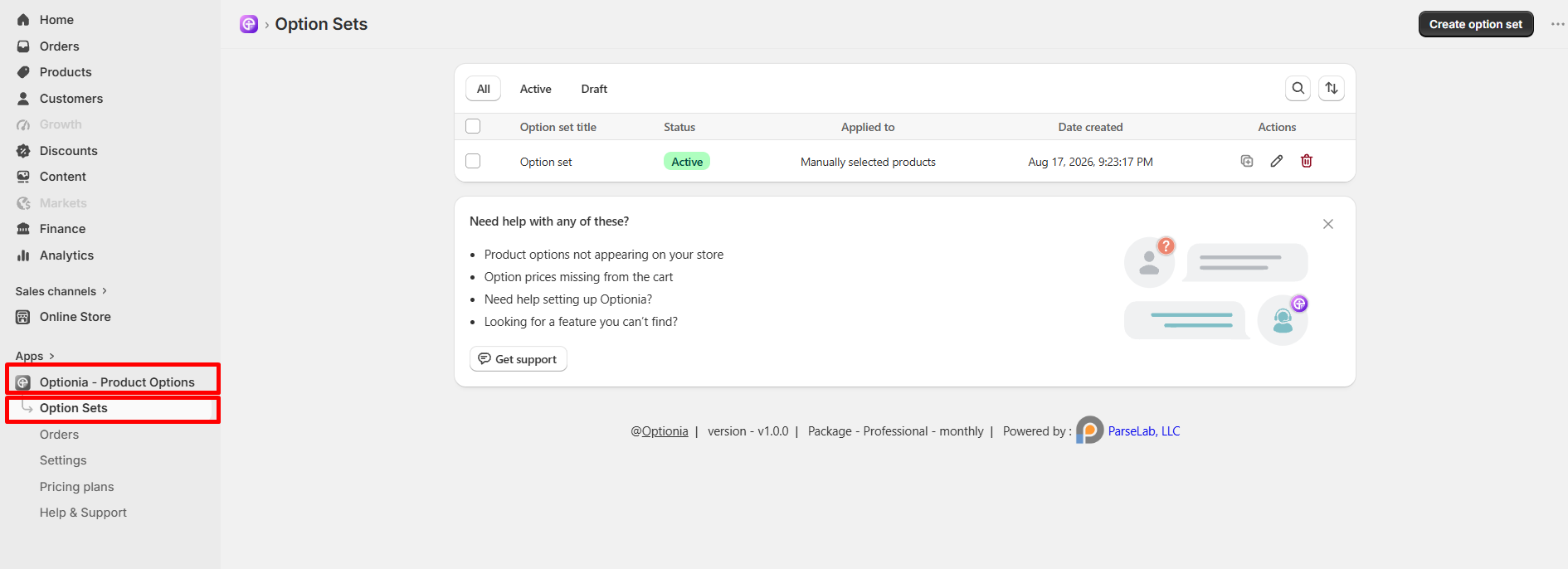
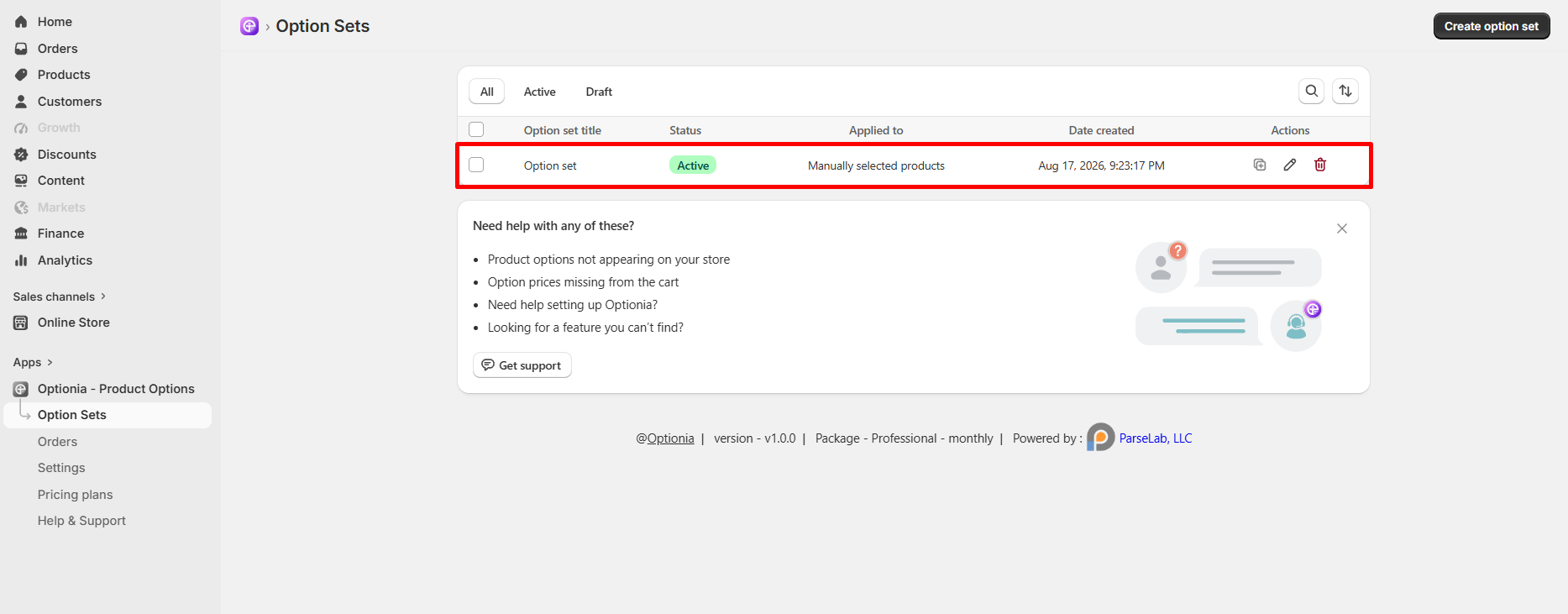
Click on the Option set you want to edit (or click the Create option set button at the top right to start a brand new one).
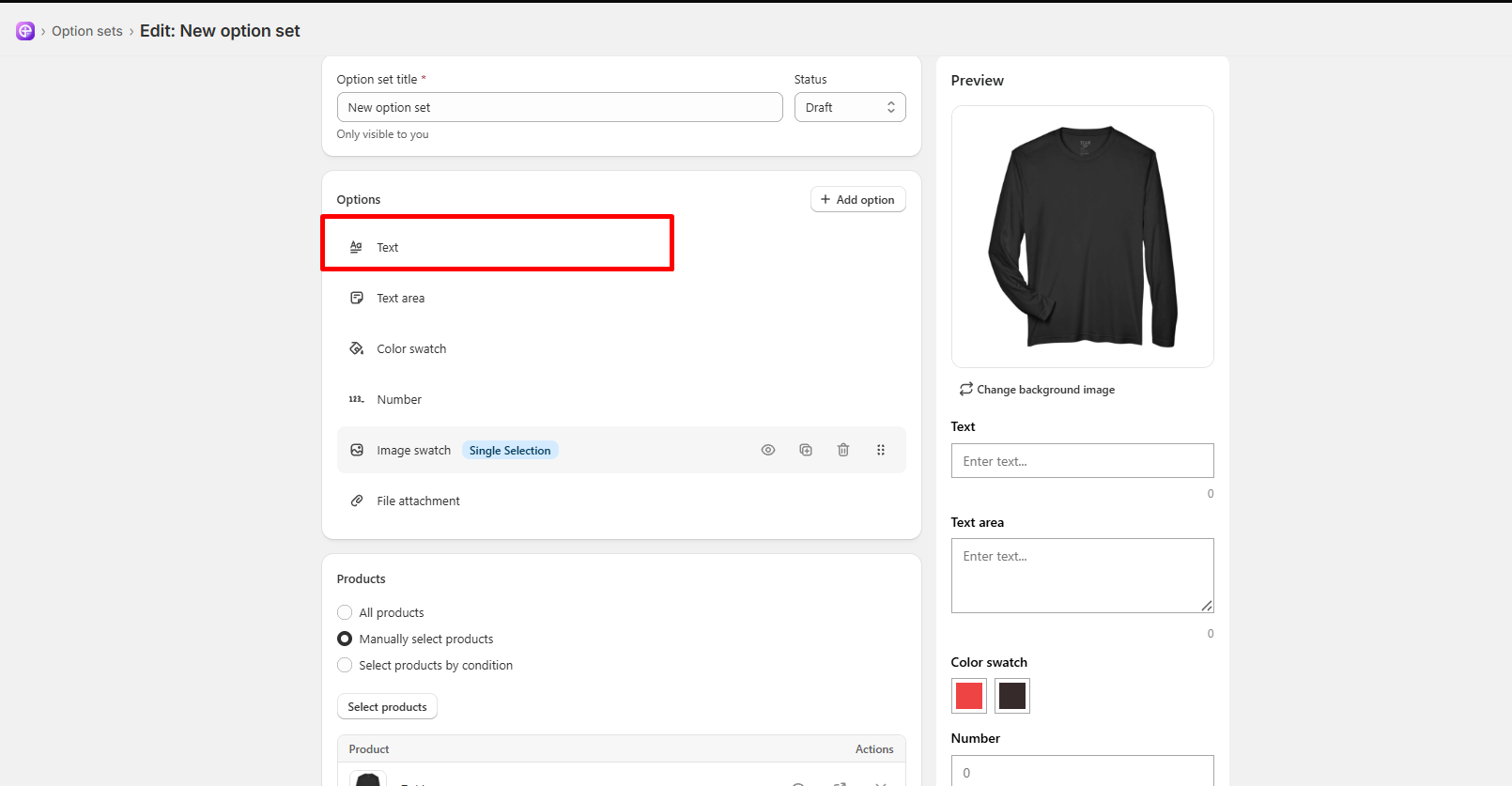
Under the Options section, click on an existing Text option to edit it (or click + Add option and select Text to create a new one).
Scroll down until you see the price boxes:
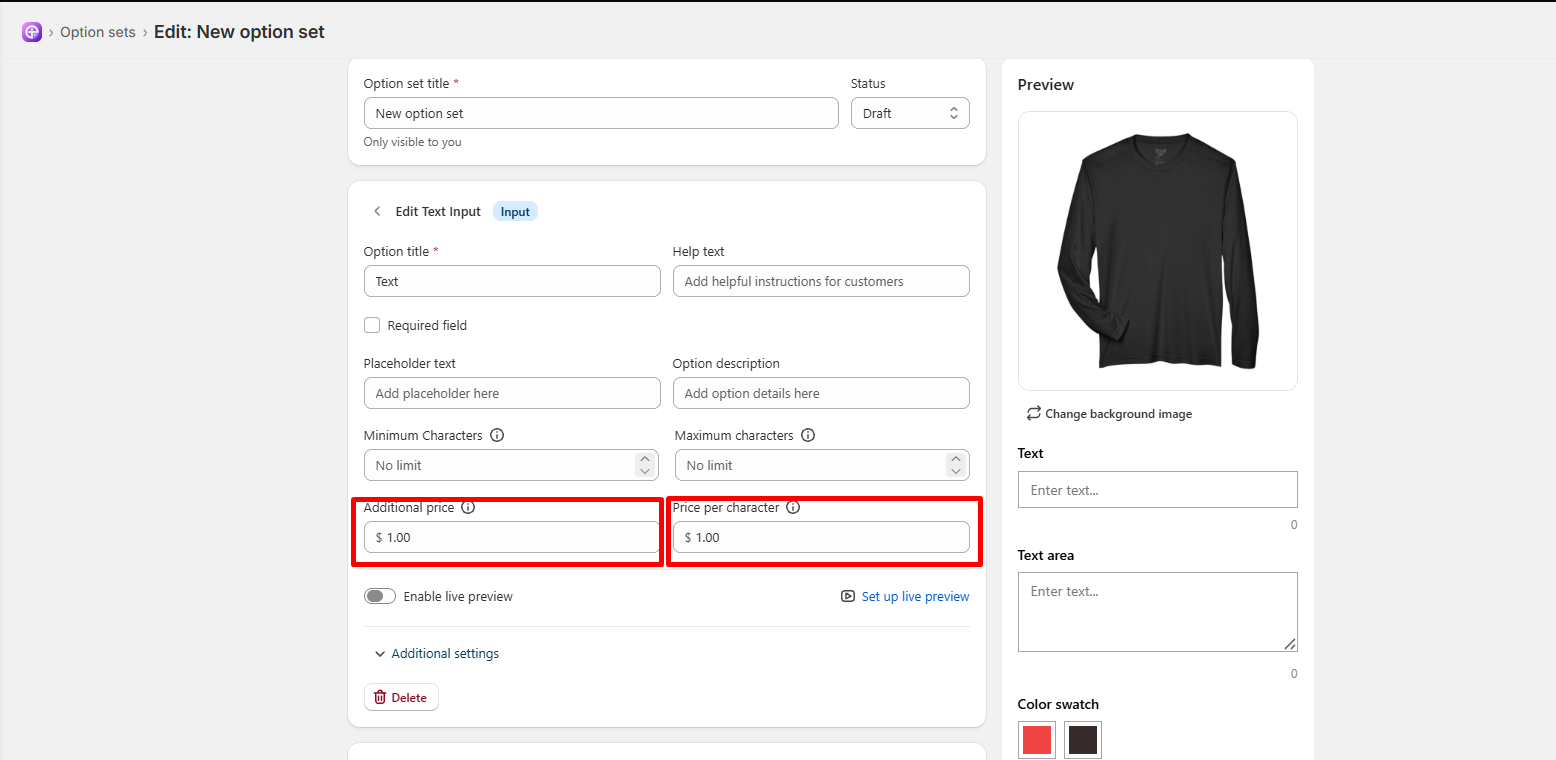
Additional price: Type the extra money you want to charge when a customer writes anything (for example: 4 for $4.00).
Price per character: Type an amount if you want to charge for every single letter they type (for example: 0.10 for 10 cents per letter).
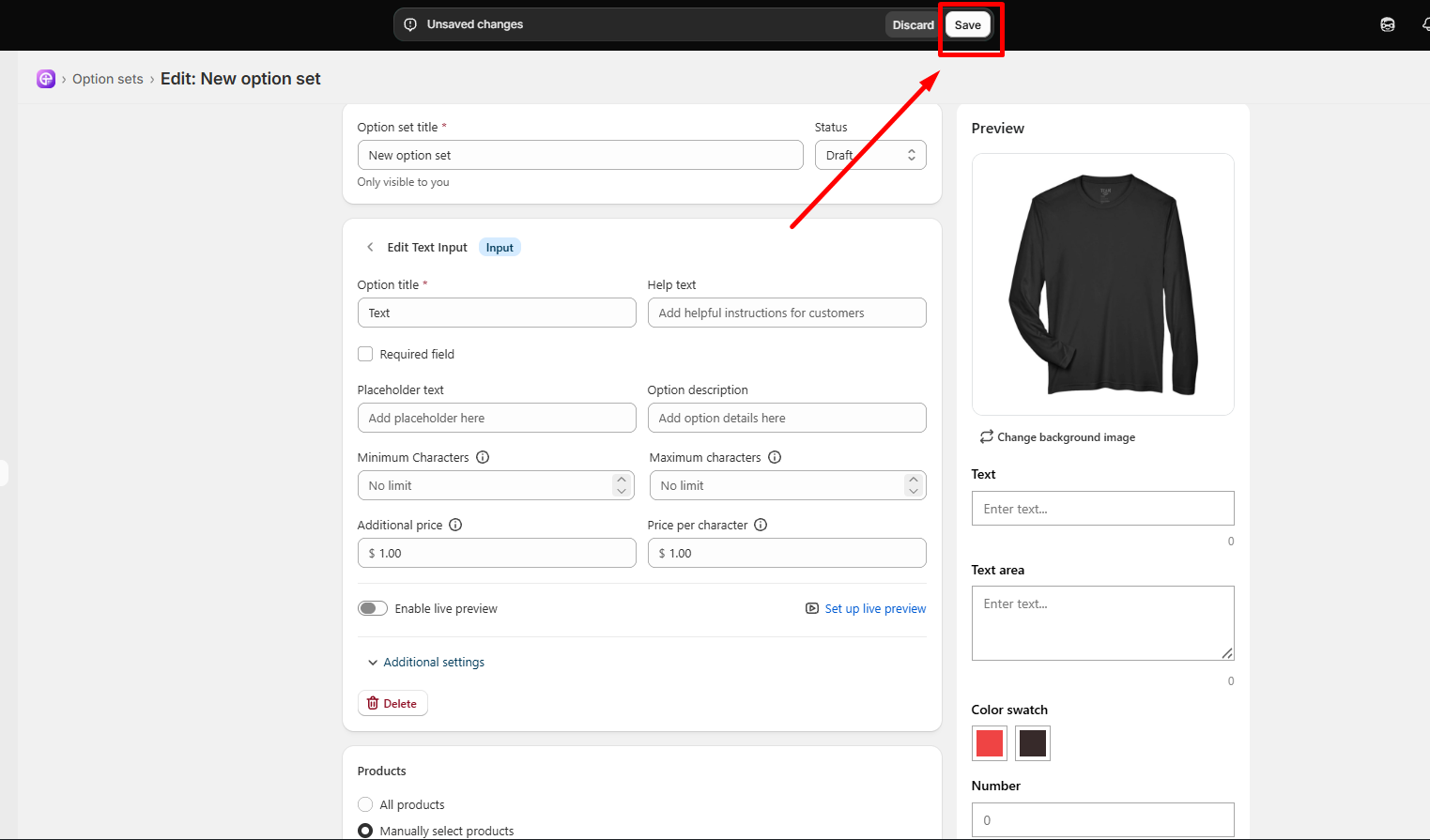
Look at the top bar and click the white Save button. That's it!
|
Note: As soon as your customer types a word on your product page, the extra price will automatically add to their total! |
If you need a multi-line text box for longer custom notes, follow the same steps but select Text Area.
Under the Options section, click on your Text Area option (or click + Add option and select Text Area).
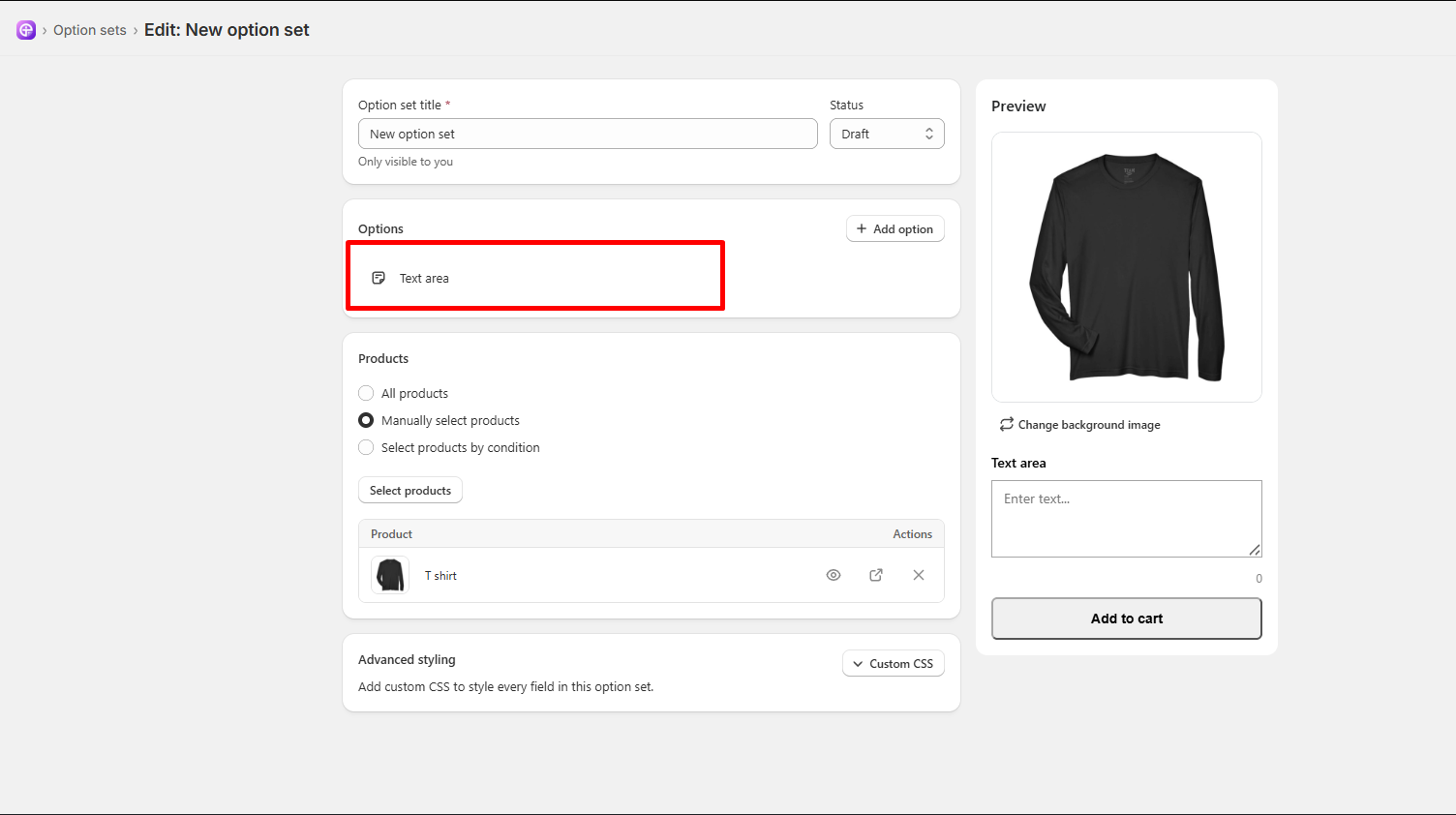
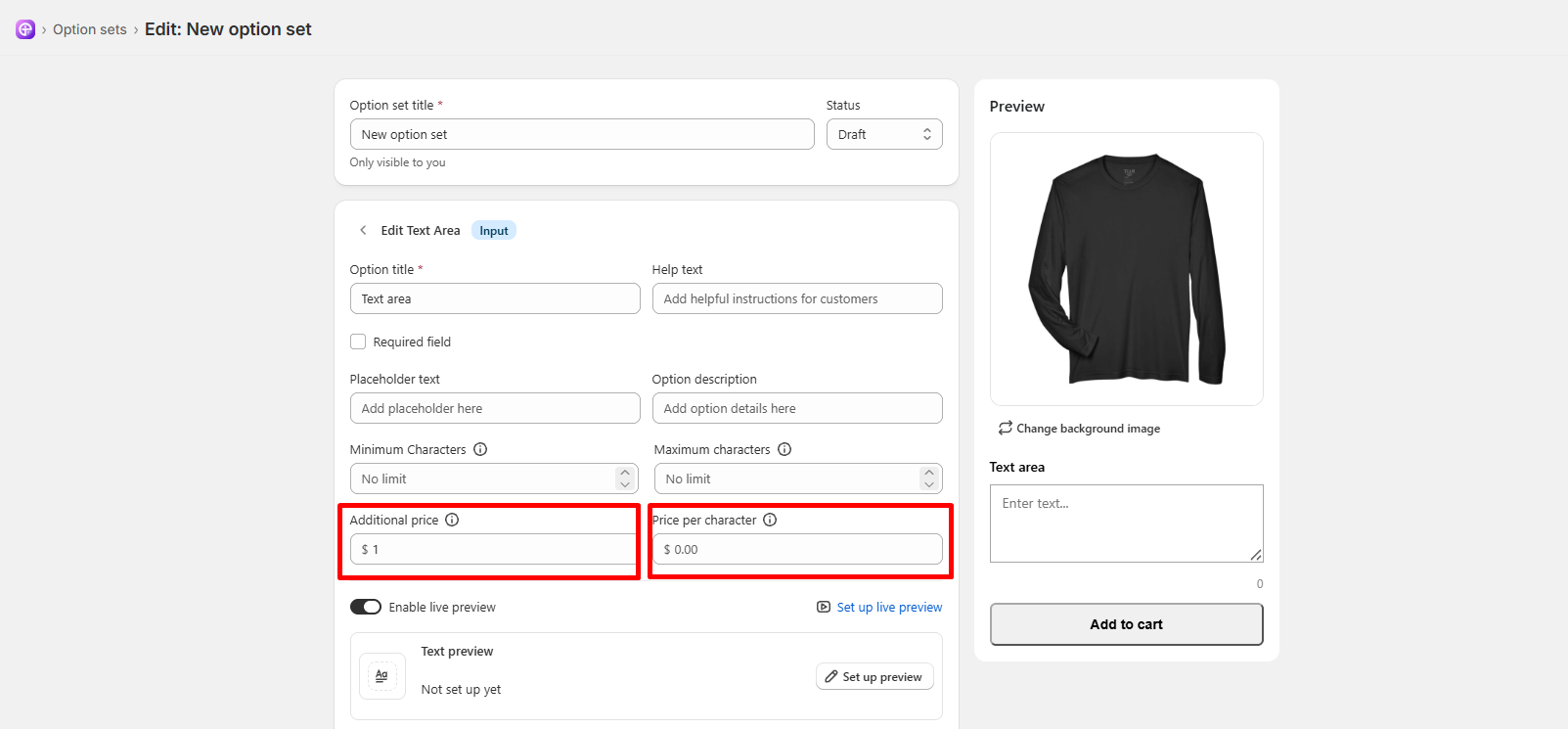
Flat Option Fee (Additional price): Enter a flat base fee in the Additional price field (e.g., 1.00). Charged as soon as the customer types into the text area.
Charge Per Character (Price per character): Enter a price in the Price per character field (e.g., 0.05). Charged for every character typed into the text area.
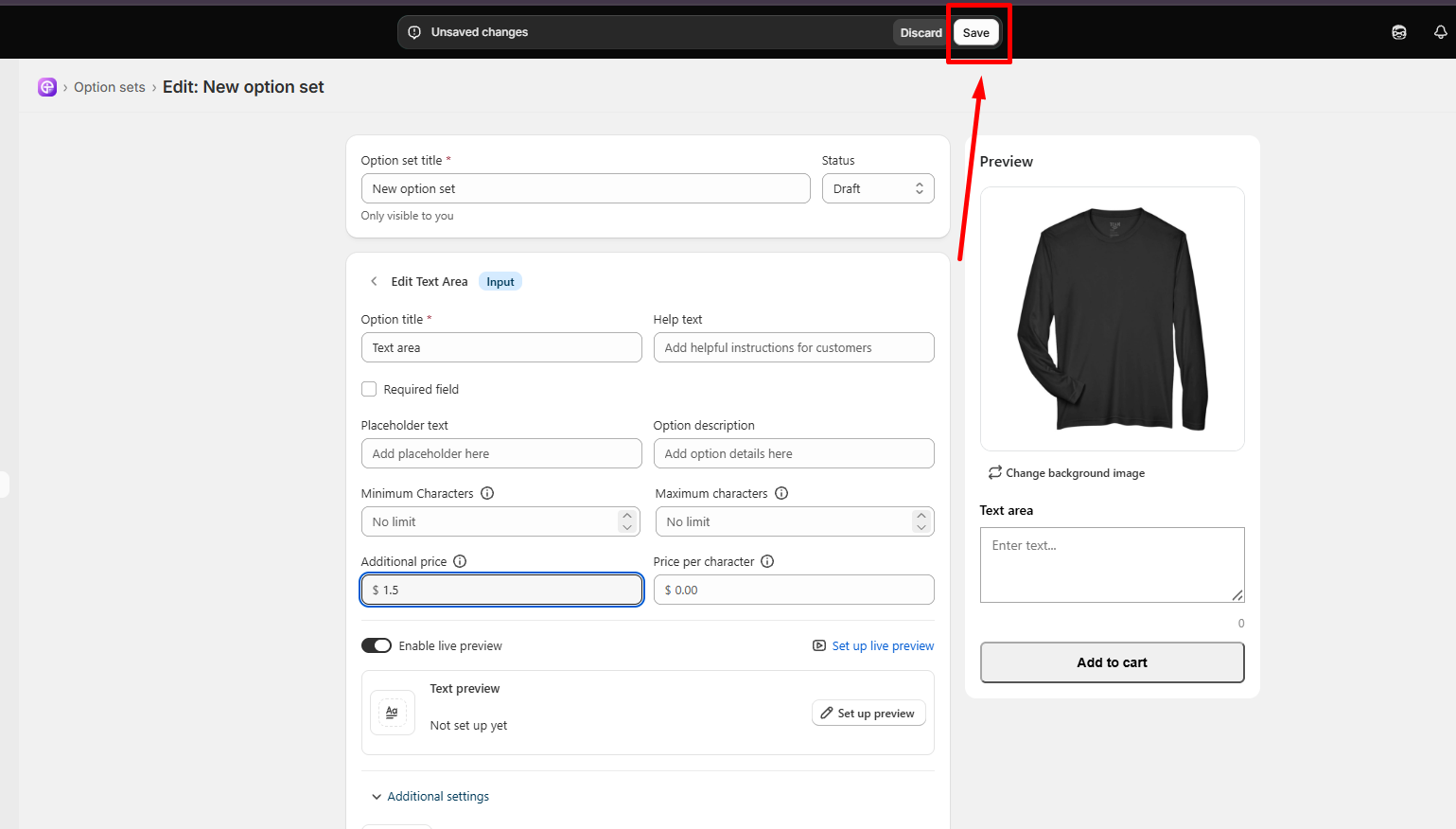
Click the white Save button in the top bar.
Note: Extra charges for text area inputs update in real time on your product page and automatically reflect in the cart total! |
Need Help?
 Getting Started
 Option Sets
 Orders
 Settings
 Configuration
 Live Preview
 Packages
 Help & Support
 Price Add-Ons
 Conditional Logic
 Design Theme Styling
 Uninstallation