The Paragraph option lets you add descriptive text or instructions to your option set. Use the Paragraph element when you need to provide instructions for filling out options, explain product customization rules, or add helpful notes or warnings.
You can add the Paragraph option to either a new or an existing option set. You can learn to create a new option set in another part. For now, we will discuss how to add a Paragraph option to an existing option set.

Go to an existing option set.
Click the option set name to open it.
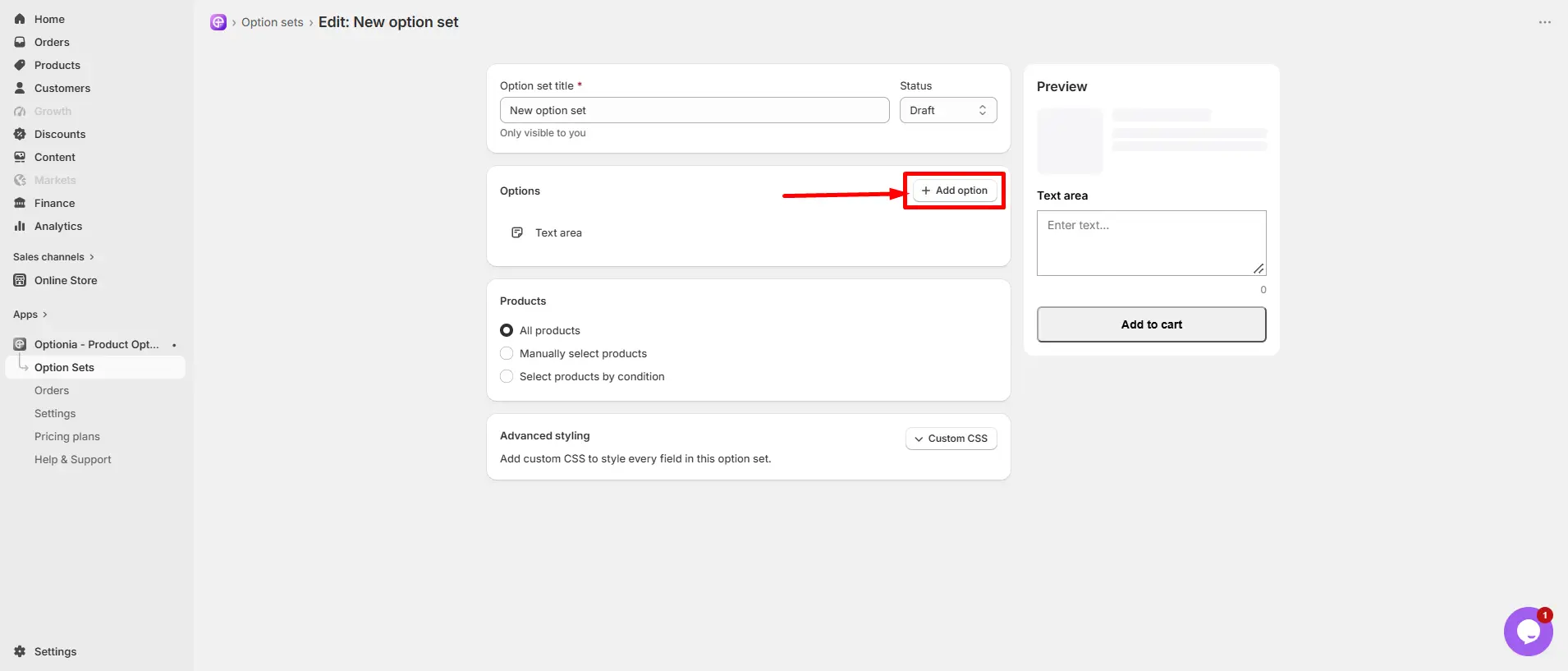
Click the “add options” button in the top right corner.
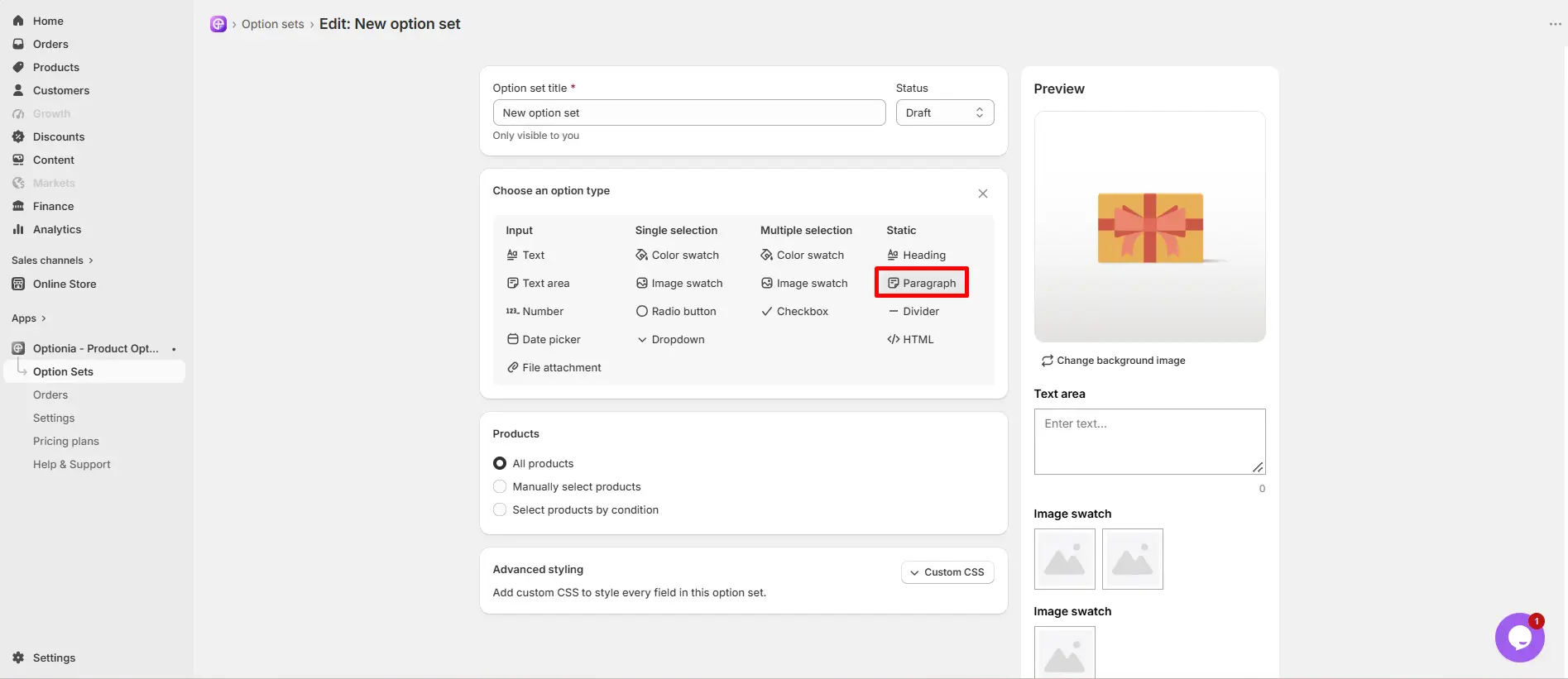
Select the “paragraph” option under Static.
Then you can edit the Paragraph option as you like. Fulfill all the necessary information first:
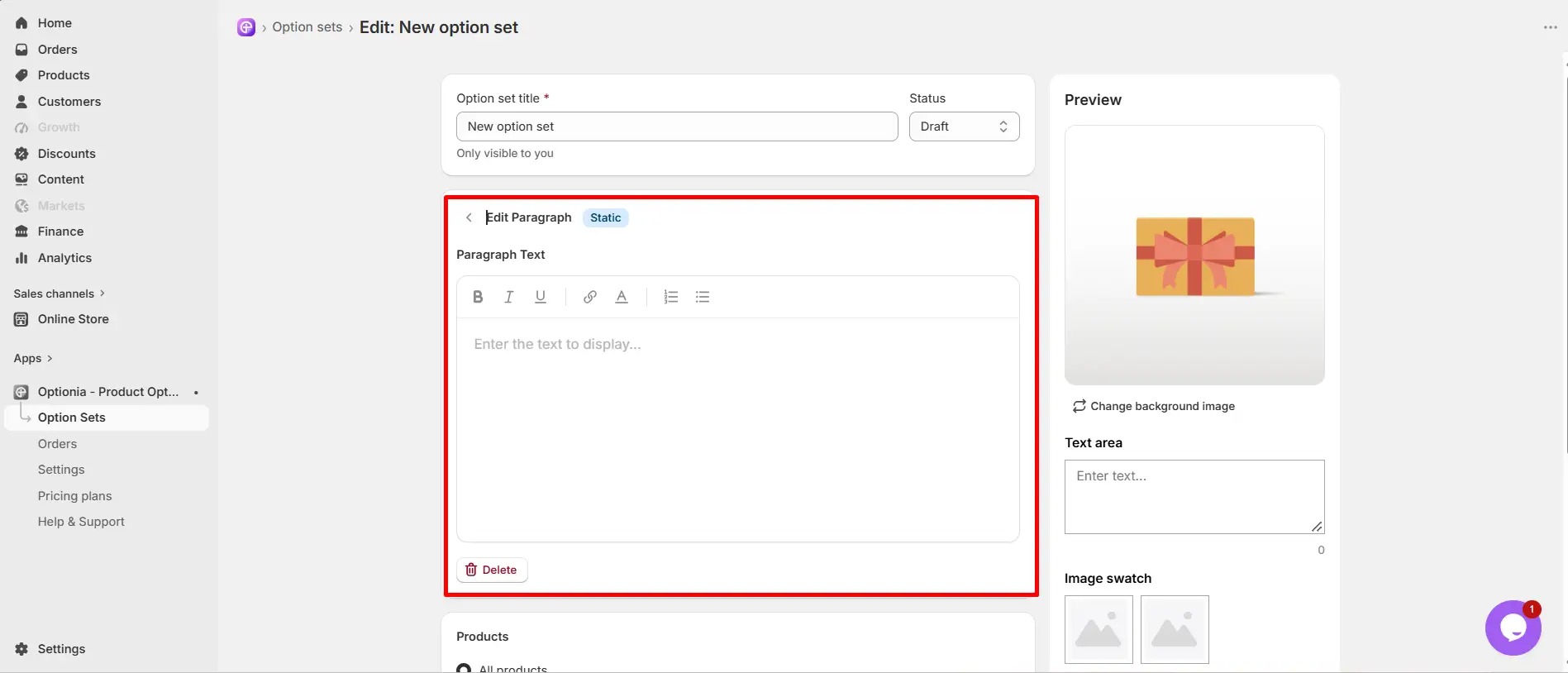
Text editor: You’ll add the paragraph text here. The text can be edited as per your liking. And you can edit the paragraph text with:
Bold
Underline
Italic
Insert link
Text color
Insert list
Once we have added all the information, click Done.
You can use the paragraph for:
Explaining character limits for text inputs
Giving formatting instructions
Adding disclaimers or production notes
|
Important: You can assign the option to a product category from here. But if you add the Paragraph Option under an option set that’s already assigned to a product type, that option will also follow that product type.
|

|
Note: When you create or edit the Option Set, it’s saved as a draft and is only visible in your dashboard. Change the status from draft to active to ensure visibility. You can see the status option right next to the Option set title |

 Getting Started
 Option Sets
 Orders
 Settings
 Configuration
 Live Preview
 Packages
 Help & Support
 Price Add-Ons
 Conditional Logic
 Design Theme Styling
 Uninstallation