Want to let customers pick more than one color choice on your product page and charge an extra fee for specific colors? Follow these super simple steps:
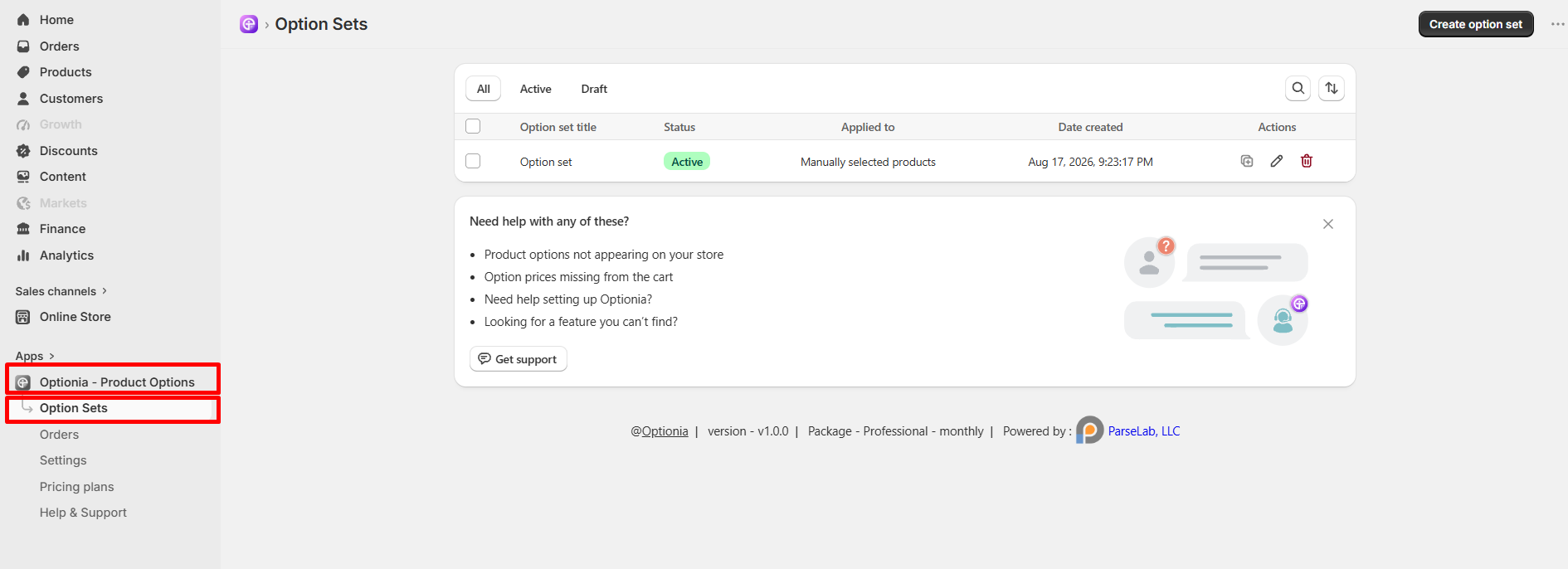
Go to your Shopify Admin page. Look at the left side, click Apps, choose Optionia - Product Options, and then click Option Sets.
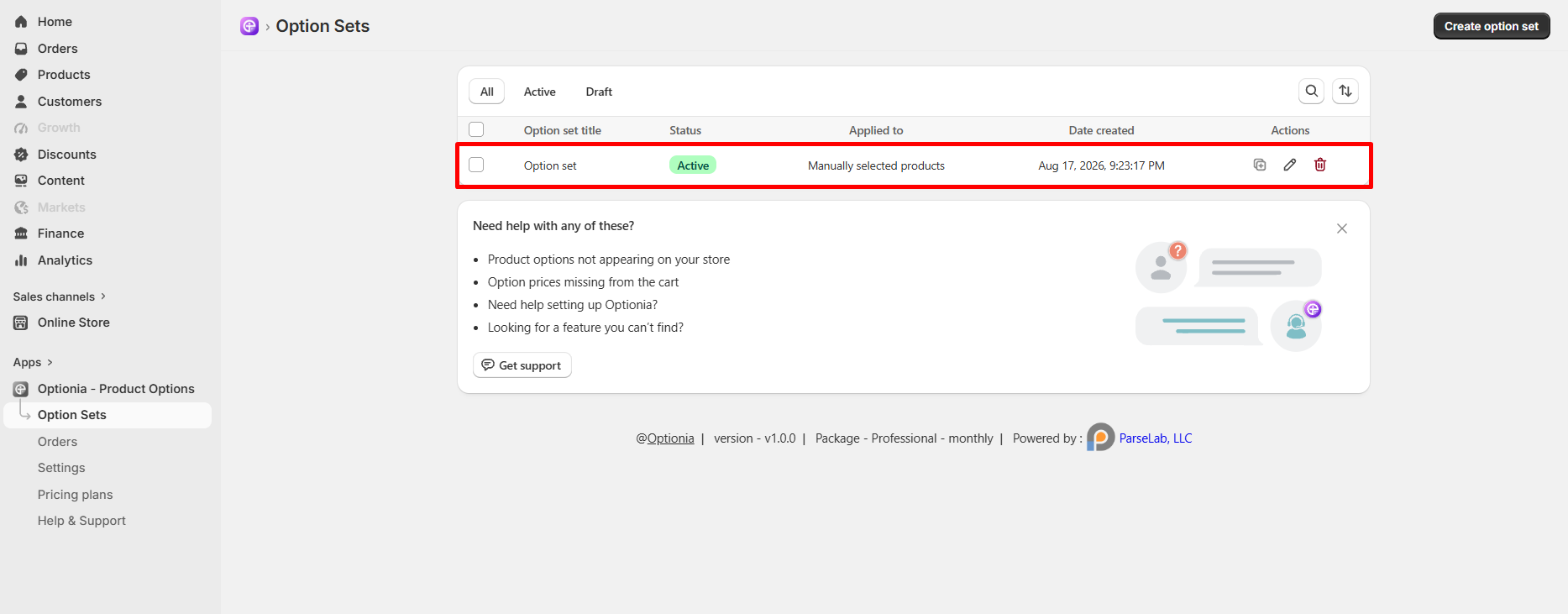
Click on the Option set you want to edit (or click the Create option set button at the top right to start a brand new one).
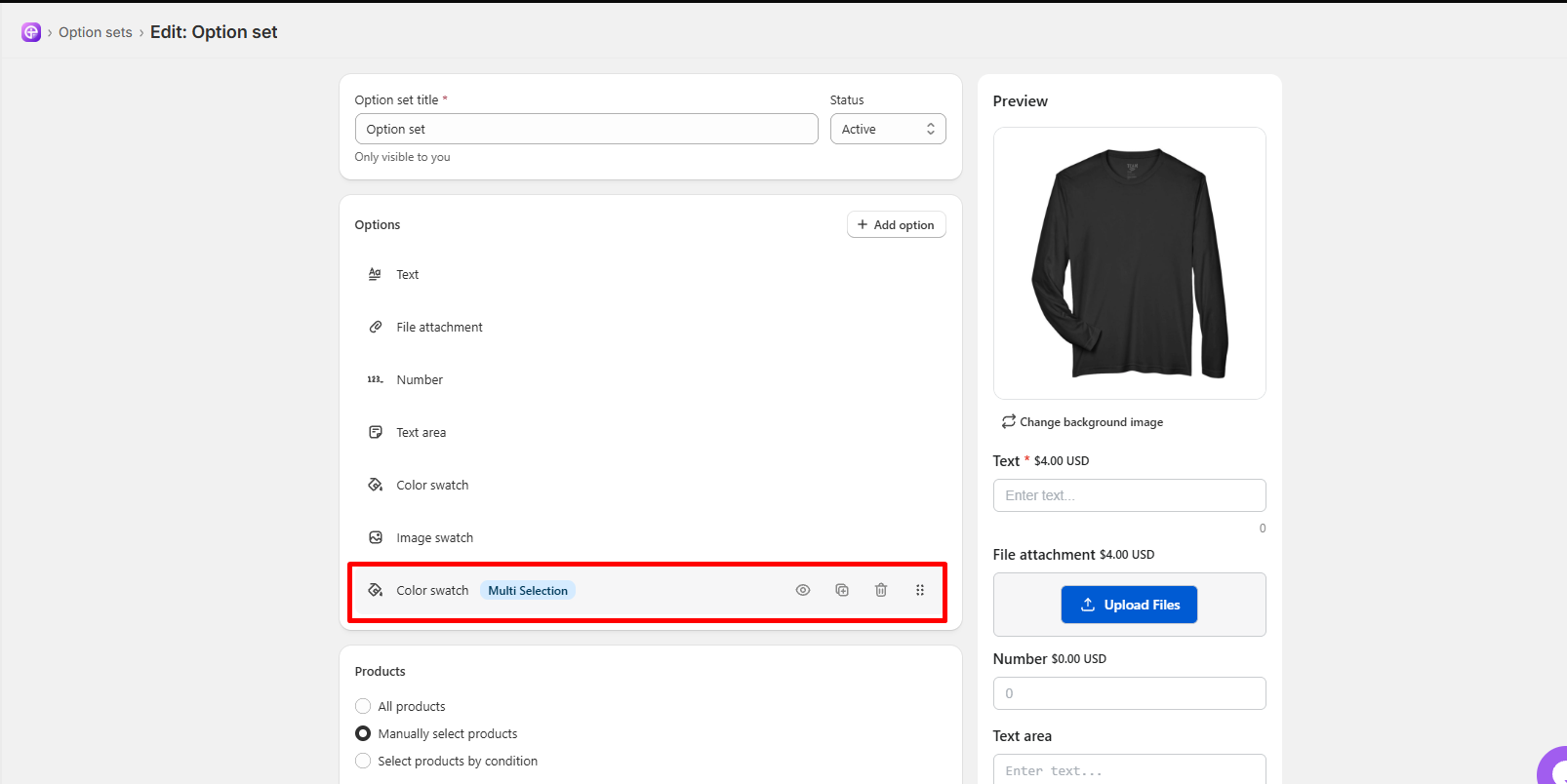
Under the Options section, click on an existing Color Swatch (Multi Selection) option to edit it (or click + Add option and select Color Swatch with Multi Selection enabled to create a new one).
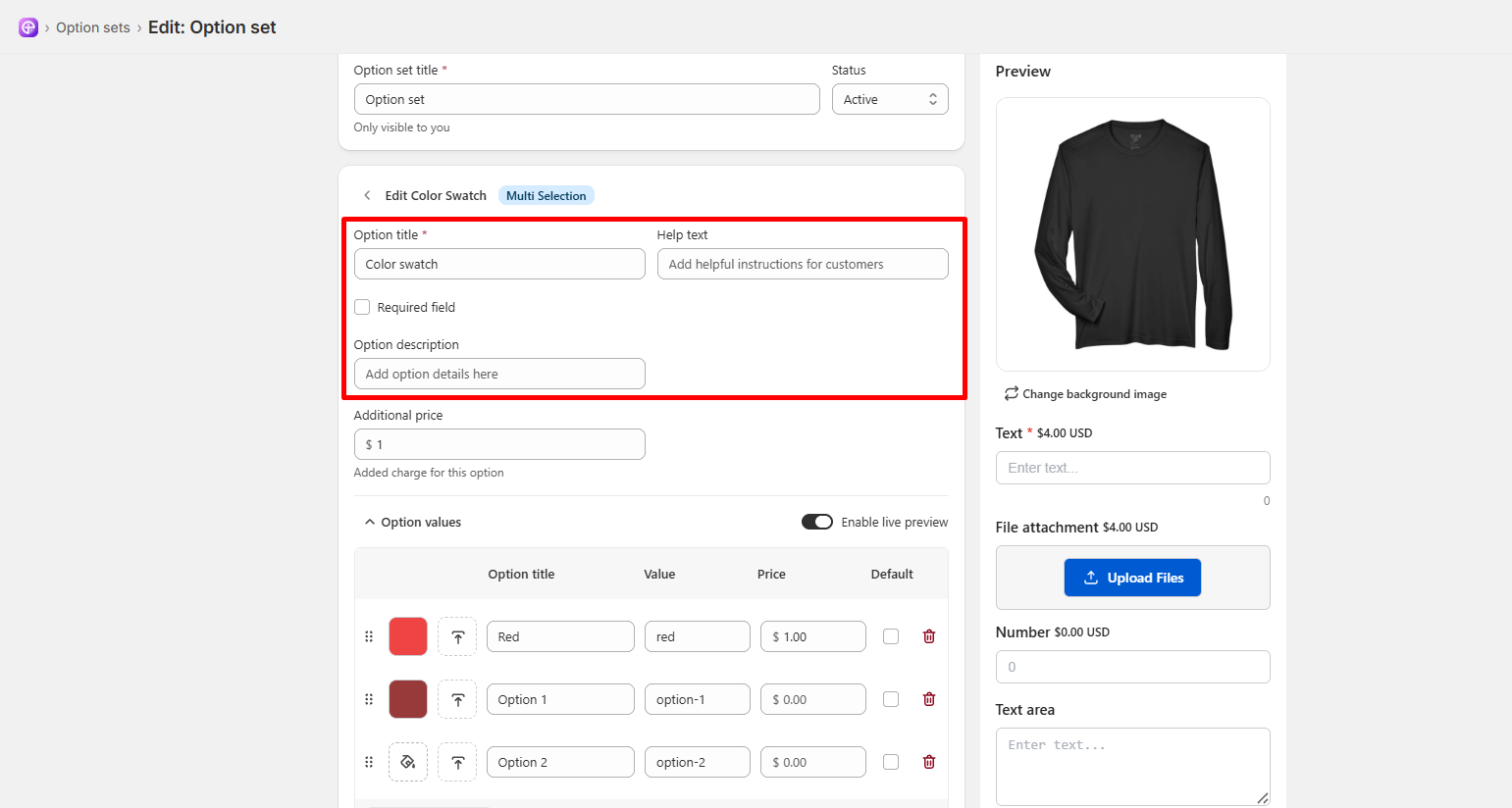
Option title: Enter the field label visible to customers (e.g., Choose Your Colors).
Help text: Add extra instructions for buyers if needed.
Option description: Add details about the option field.
Required field: Check this box if customers must select colors before adding the item to their cart.
You can add extra fees in two different ways:
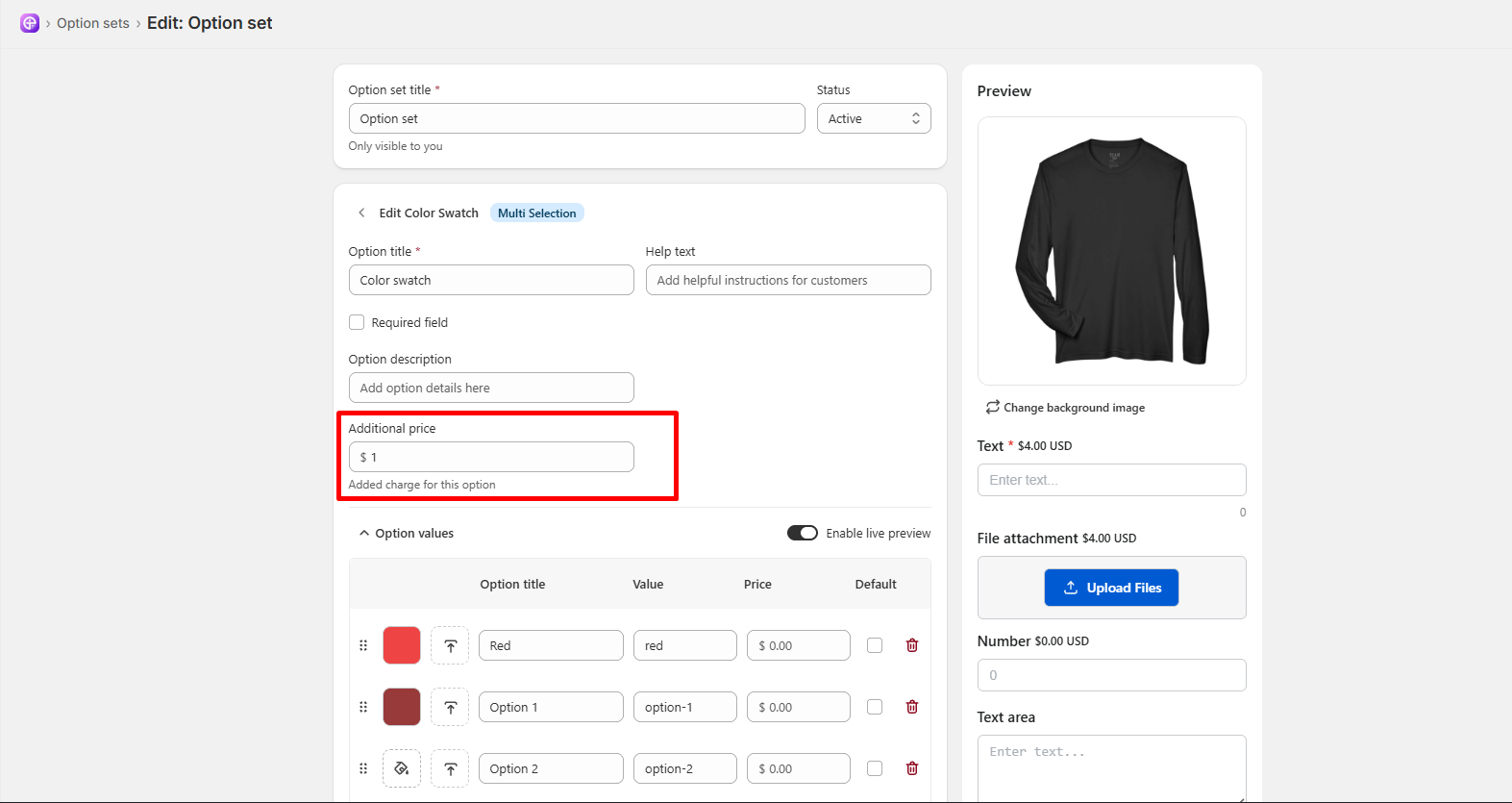
Flat Fee for the Whole Option: Scroll to the Additional price box near the top and type a base extra price charged whenever a customer uses this option (for example: 1.00 for $1.00).
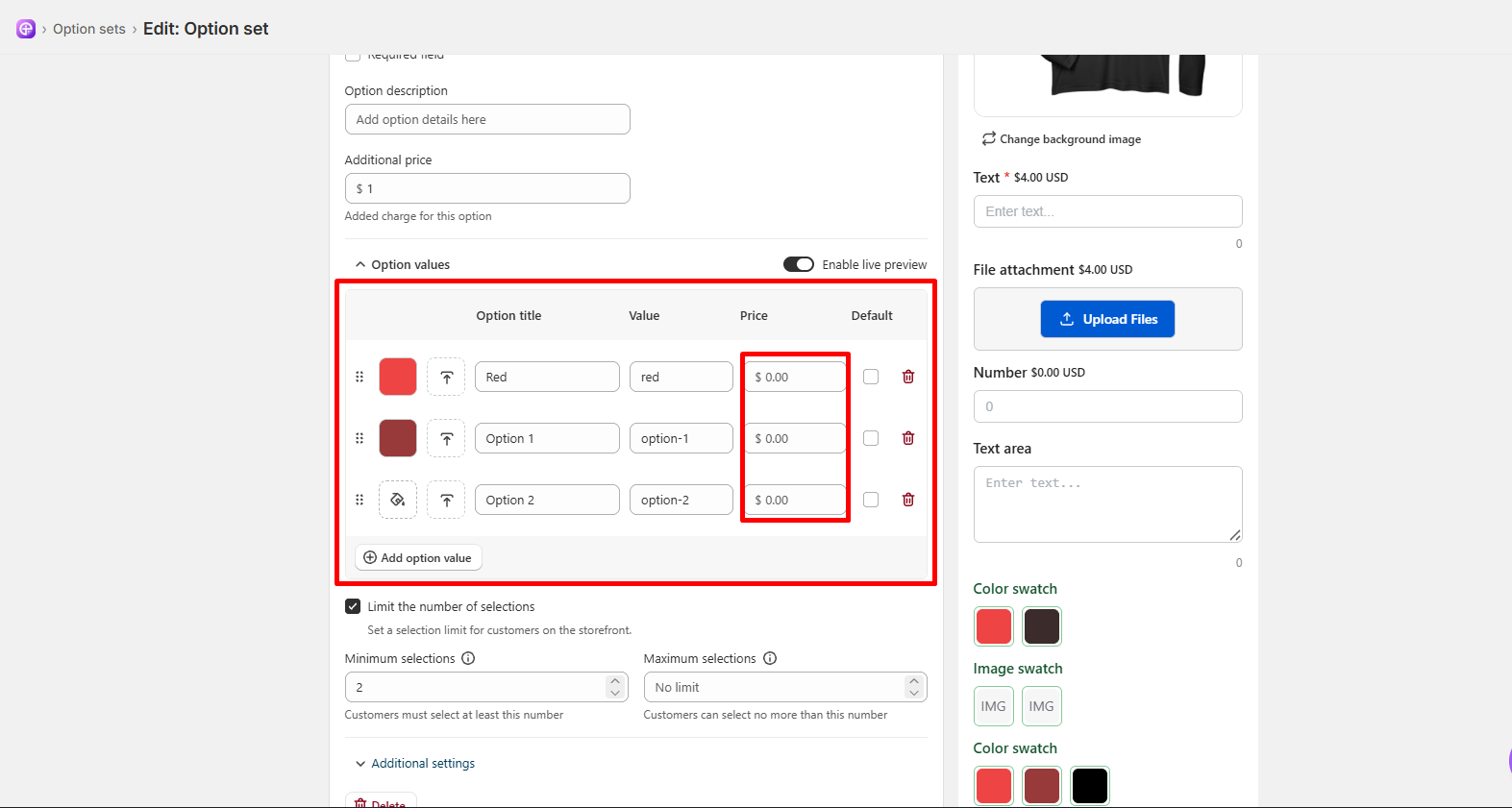
Price per Color Choice: Look under Option values. In the Price column next to each color, type the extra amount you want to charge for choosing that specific color (for example: 0.00 for free colors, or 2.00 to charge an extra $2.00 for special premium colors).
|
Live Preview Note:Look above the Option values table for the Enable live preview toggle switch. Switch it ON if you want the product preview on your storefront to update instantly with each color your customer selects. |
Check the box for Limit the number of selections if you want to set minimum or maximum limits on how many colors a customer can pick:
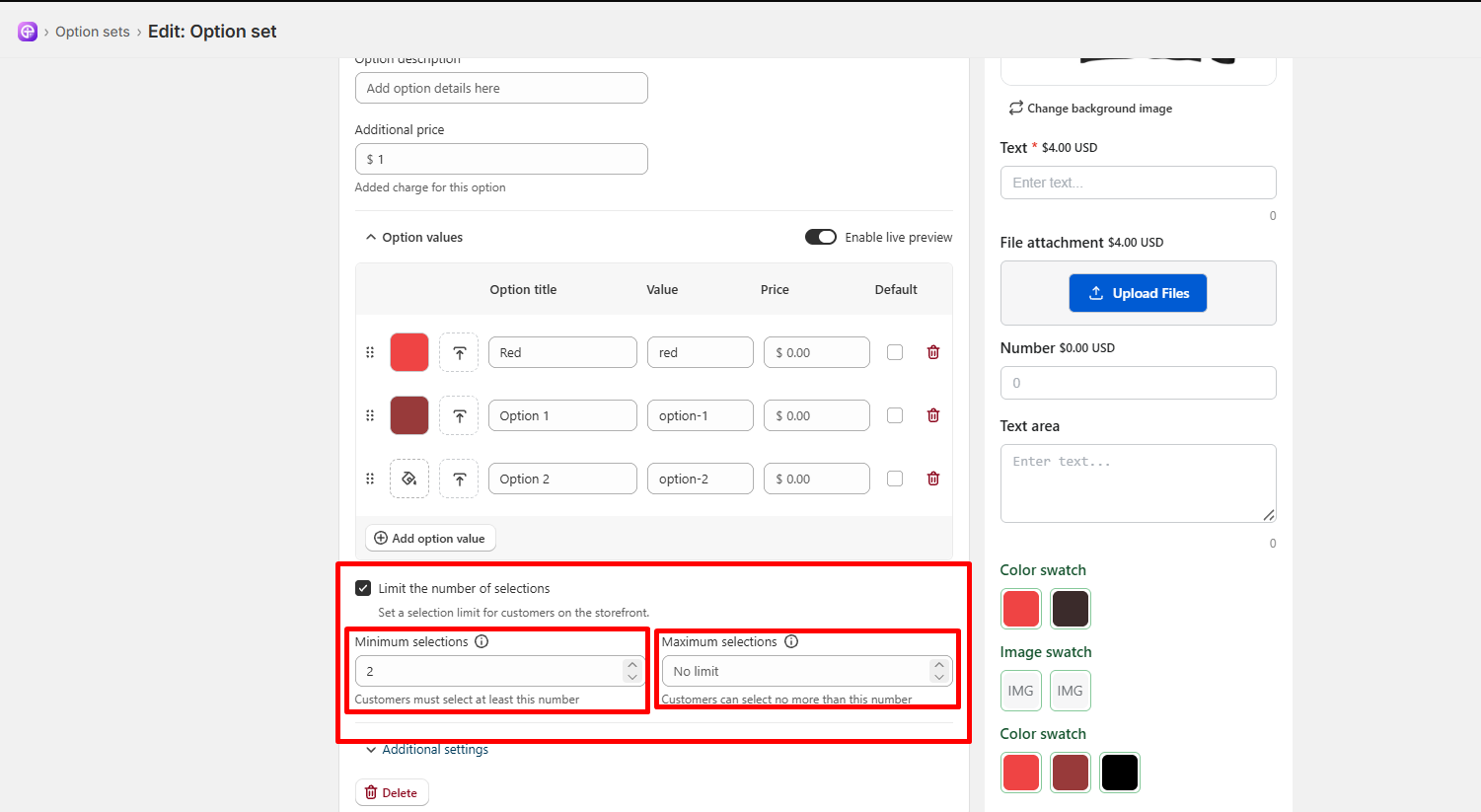
Minimum selections: Set the least number of colors a customer must select (for example: 2).
Maximum selections: Set the highest number of colors a customer is allowed to select.
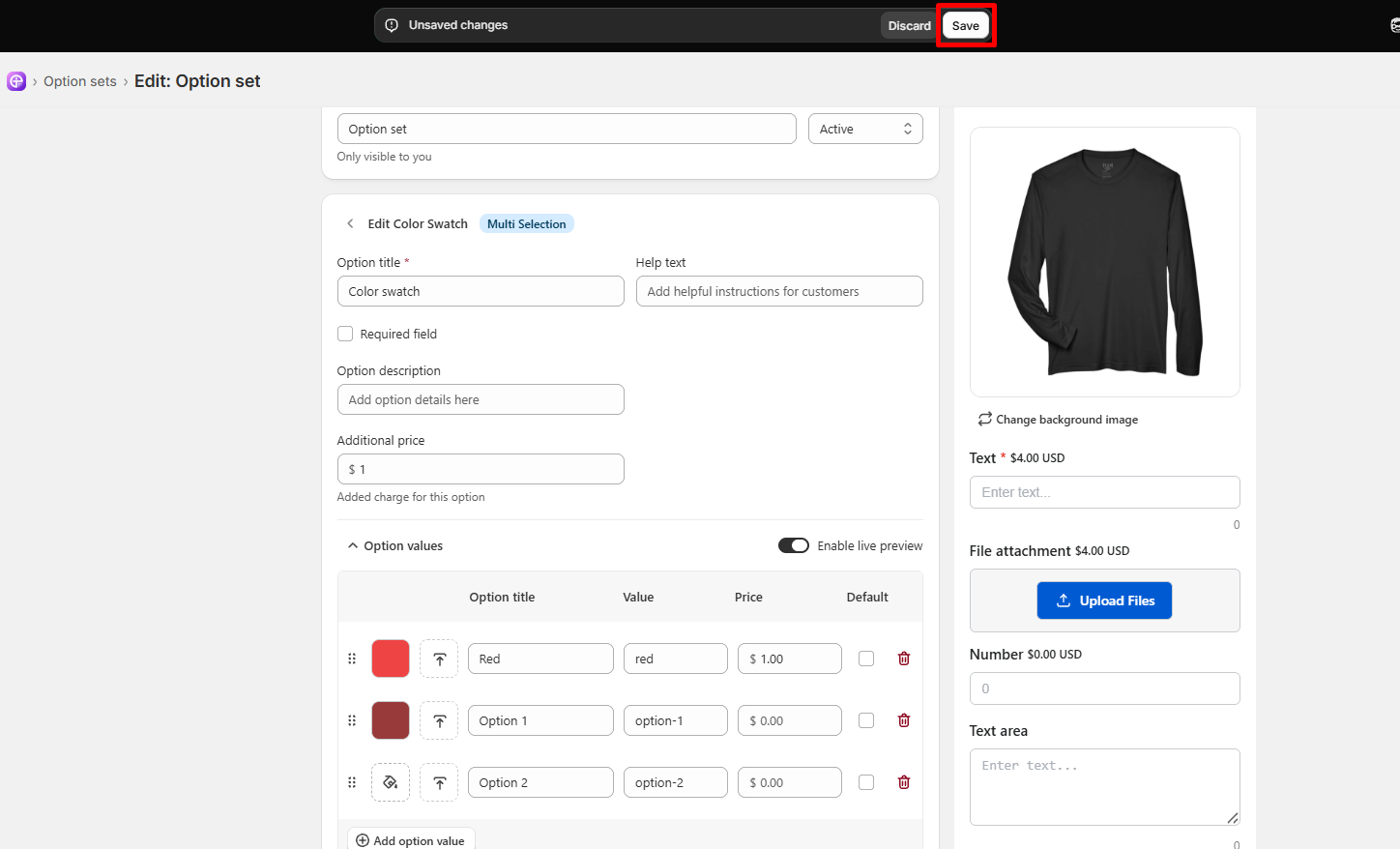
Look at the top bar and click the white Save button. You are all done!
|
Note: As soon as the customer selects their colors on the product page, any extra price set for those color choices will automatically add to their total! |
Need Help?
 Getting Started
 Option Sets
 Orders
 Settings
 Configuration
 Live Preview
 Packages
 Help & Support
 Price Add-Ons
 Conditional Logic
 Design Theme Styling
 Uninstallation