When a customer uploads a file or image from the product page, you can easily view and download it directly from the order page. By downloading these files, you can quickly access everything needed for production, printing, engraving, or customization workflows.
Here’s the step-by-step process of accessing the order files:
Go to your Shopify Admin panel and open the Optionia App.
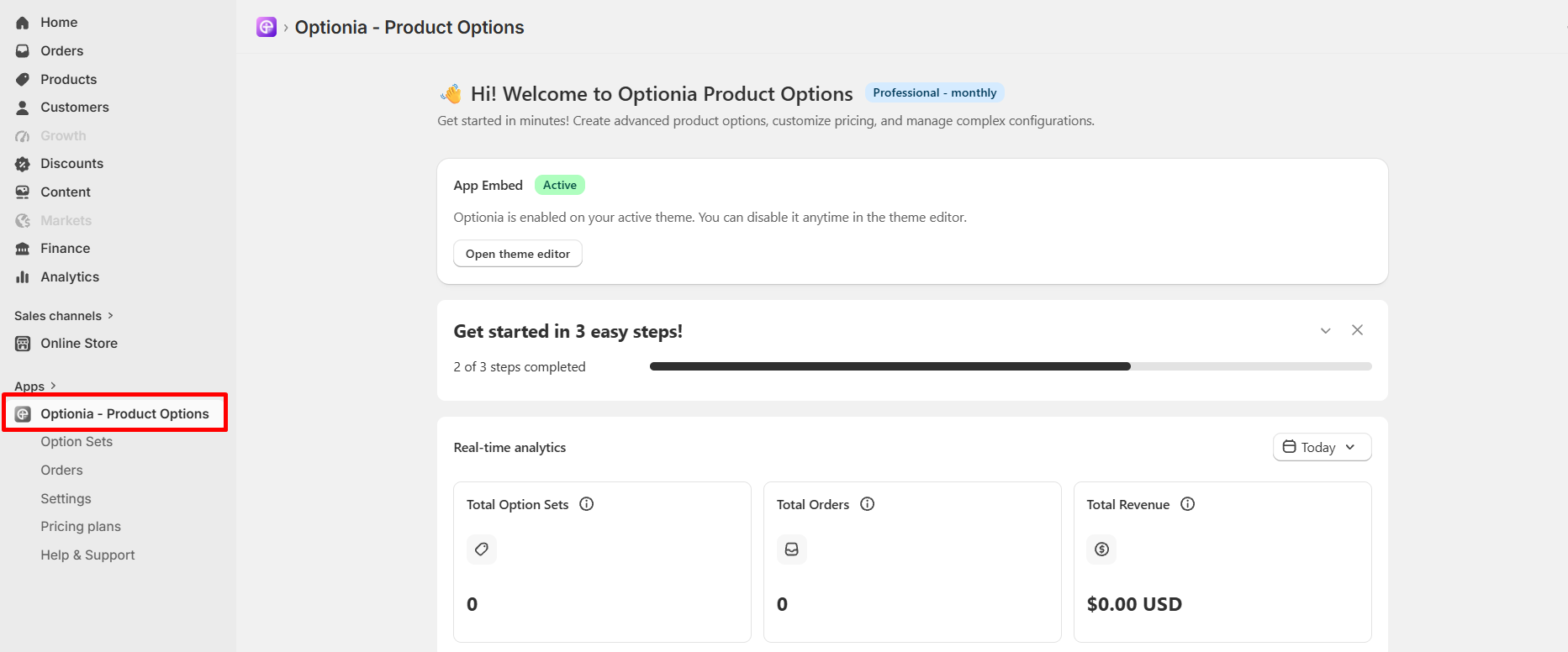
Click on Orders from the menu and select the specific order you want to view.

Click on the download button beside the File attachment option to download the customer's uploaded file.

|
Note: The downloaded file will automatically save in the exact format and resolution originally submitted by your customer (e.g., PNG, JPG, GIF, PDF). |
 Getting Started
 Option Sets
 Orders
 Settings
 Configuration
 Live Preview
 Packages
 Help & Support
 Price Add-Ons
 Conditional Logic
 Design Theme Styling
 Uninstallation