The Order Files feature in Optionia lets you view and download all files related to a specific order in one place. By downloading order files, you can quickly access everything needed for production, printing, engraving, or customization workflows.
Here’s the step-by-step process of accessing the order files:
Go to your Shopify Admin panel and open the Optionia App
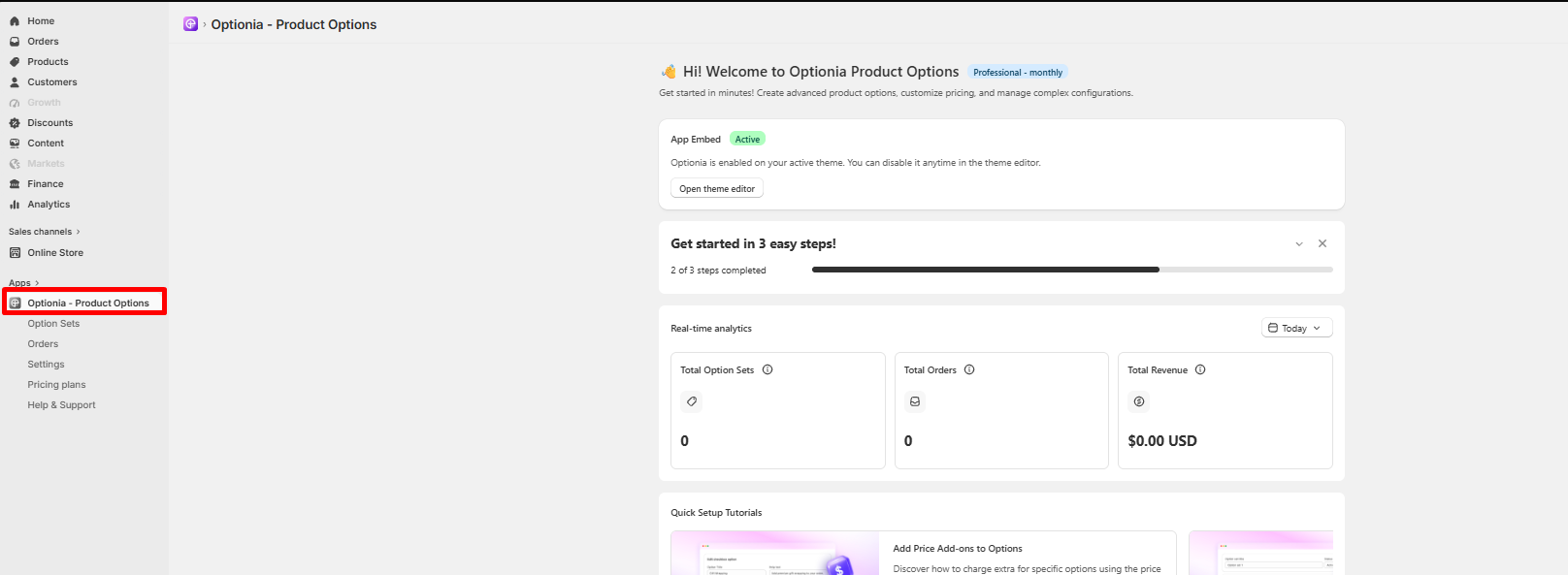
You can now find the “Orders” option on the left sidebar. Click on Orders to see and download your store orders.
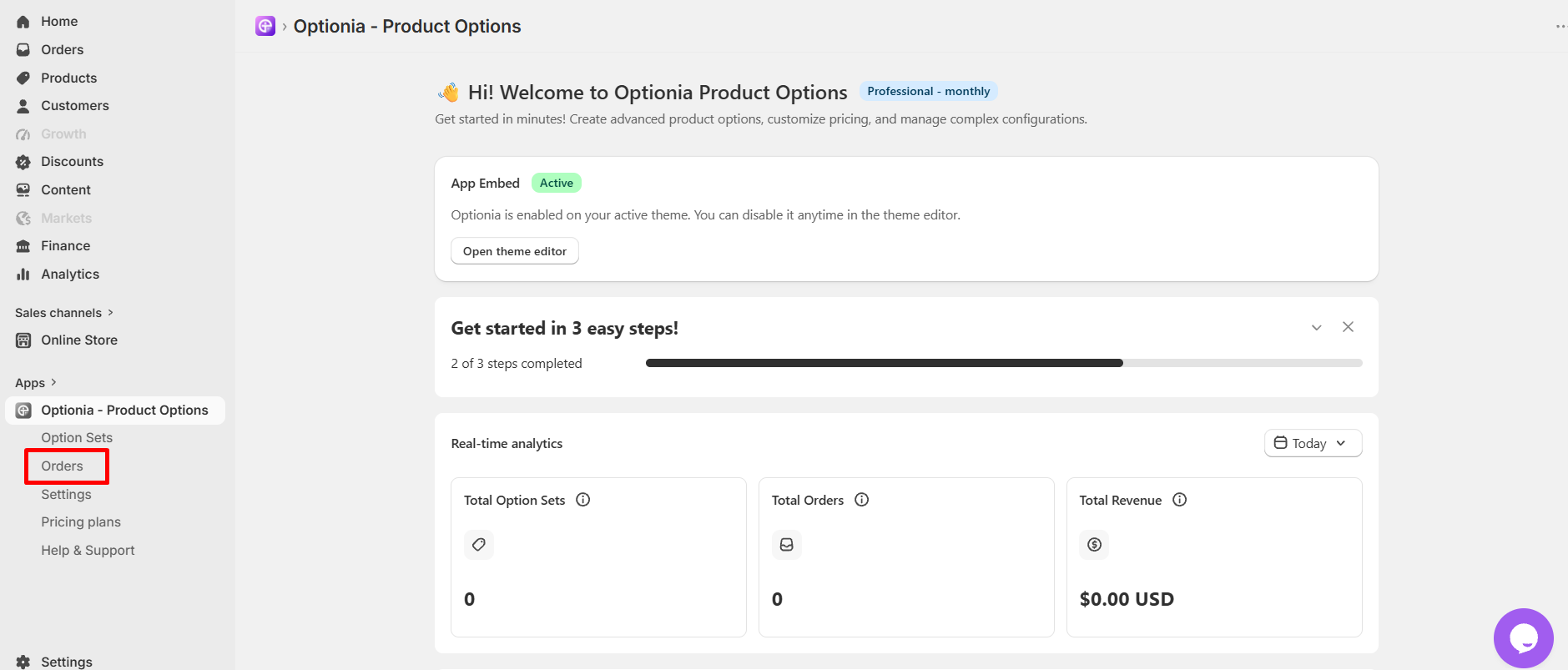
On the Orders page, you can see a list of all orders in your store.
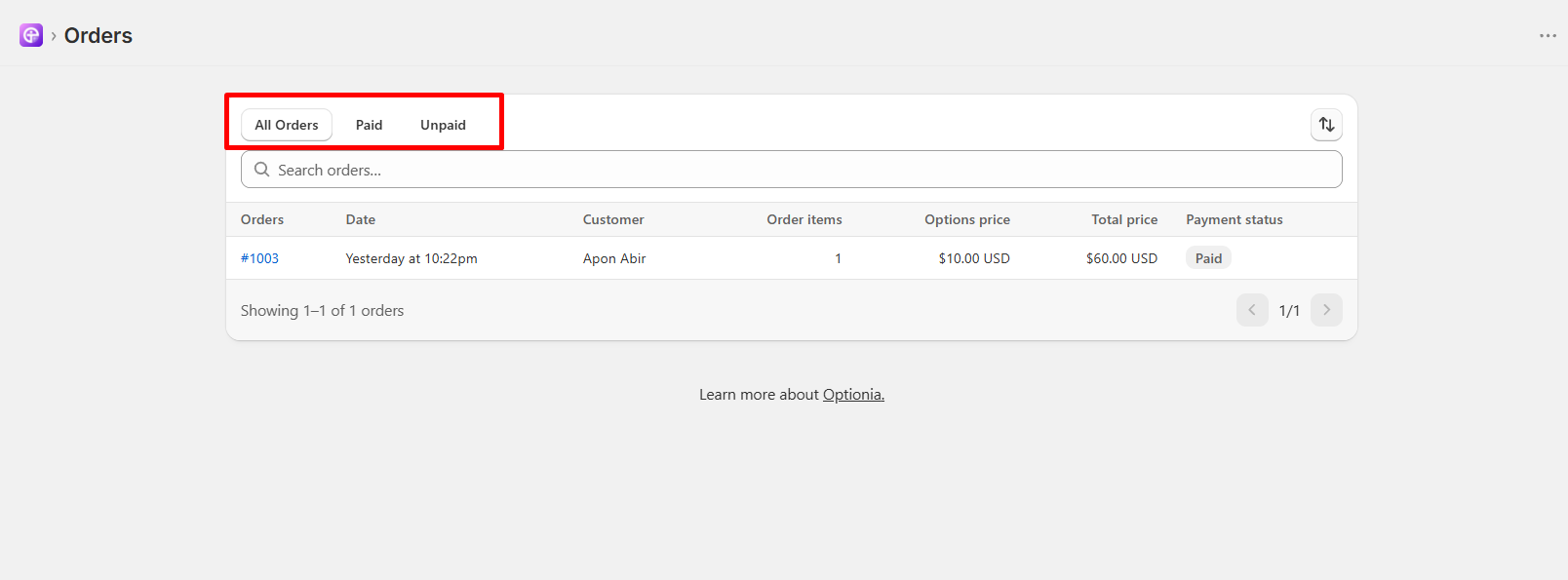
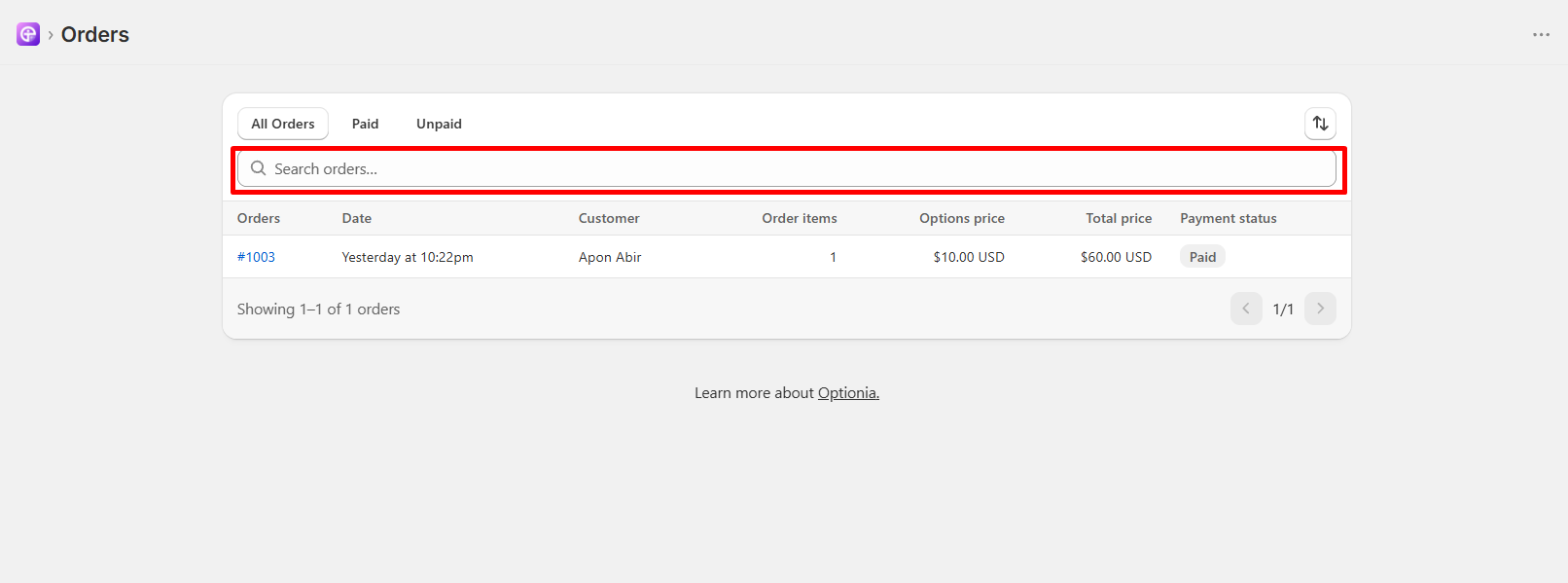
You can see the orders in various categories, like Paid, Unpaid, or All orders at once. You can also search and filter orders by your preferences using the “Search and Filter” button.
You can also sort the orders based on:
Date: Sort orders based on order date.
Order number: Sort orders based on order number.
Total price: Sort orders based on Total price.
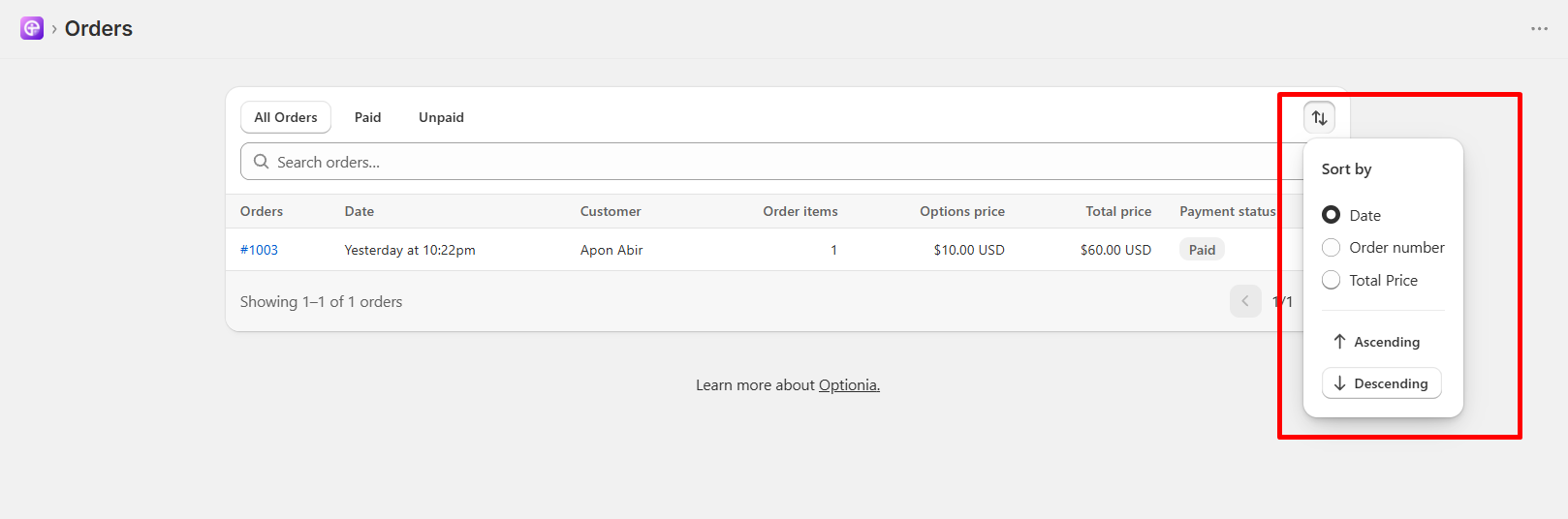
You can also see the order list in ascending or descending order.
You can download the entire order file, including all the customized option lists customers have chosen. For that, you need to open the Order Detail page. Select the order you want to download, then click the order number to open the details page.
Once the order detail page opens, you can see a “Download Order file (zip)” button in the top right corner. Click the button to download the order file, which includes order details like option information, uploaded image, preview image of the product.
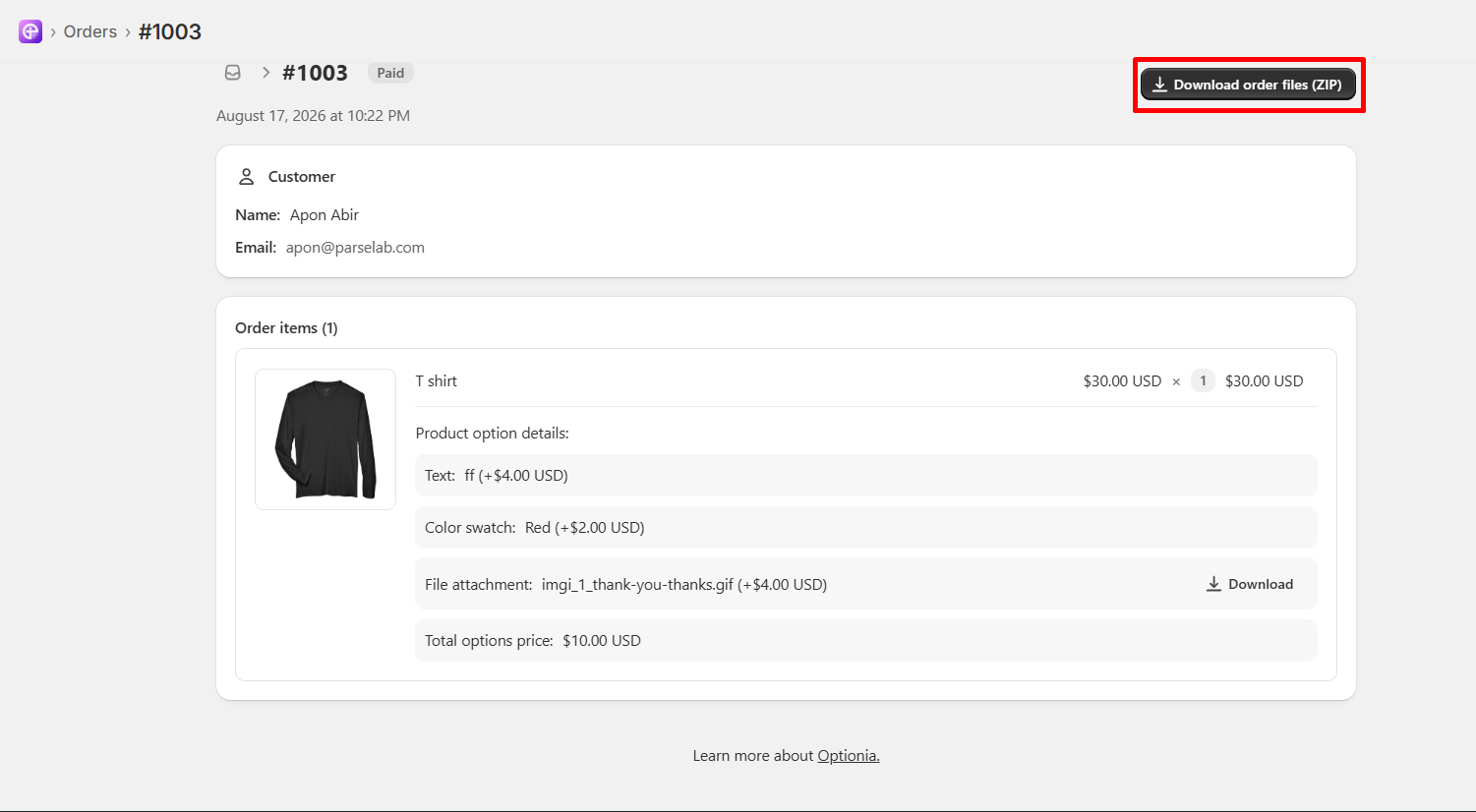
When your order file is downloaded, Optionia creates a compressed ZIP folder that includes all files associated with the order. This may include:
Text inputs from customers
Text Area inputs
Color and Image swatch information
Customer-uploaded images (if any)
Order information related to customization
Shipping information
|
Note: Shipping information and order details come in two separate CSV files. |
 Getting Started
 Option Sets
 Orders
 Settings
 Configuration
 Live Preview
 Packages
 Help & Support
 Price Add-Ons
 Conditional Logic
 Design Theme Styling
 Uninstallation