 Getting Started
 Option Sets
 Orders
 Settings
 Configuration
 Live Preview
 Packages
 Help & Support
 Price Add-Ons
 Conditional Logic
 Design Theme Styling
 Uninstallation
Activate Optionia in Your Store
Before using Optionia to display product options on your storefront, you need to connect the app to your active Shopify theme. Enabling the Optionia app embed allows the app to load on your storefront and display the option fields you create on your product pages.
Enable Optionia in Your Theme
Follow these steps to activate Optionia in your current theme.
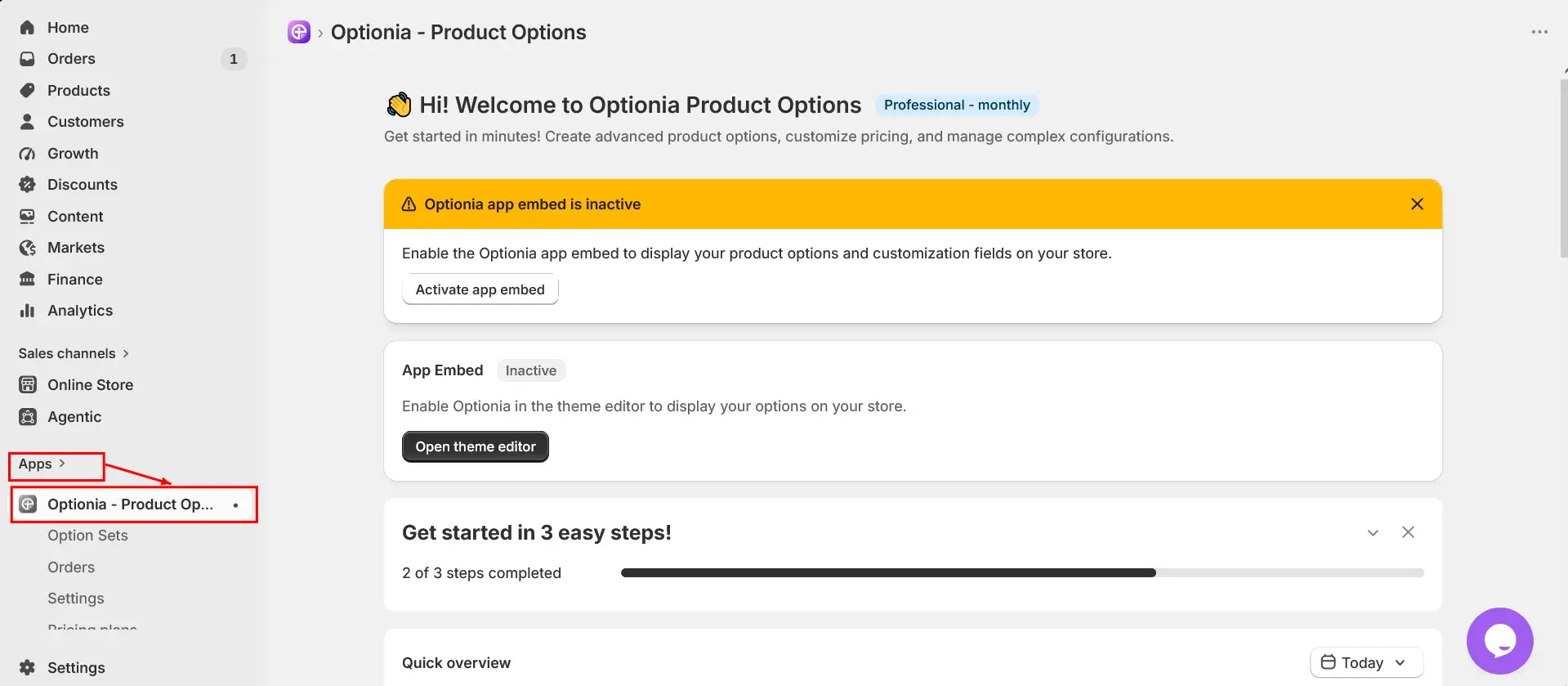
Step 1:Open Optionia
Go to your Shopify Admin dashboard and open the Optionia Product Options app.
Step 2: Click Activate App Embed
If Optionia is not yet connected to your theme, you will see an Activate App Embed button inside the app.
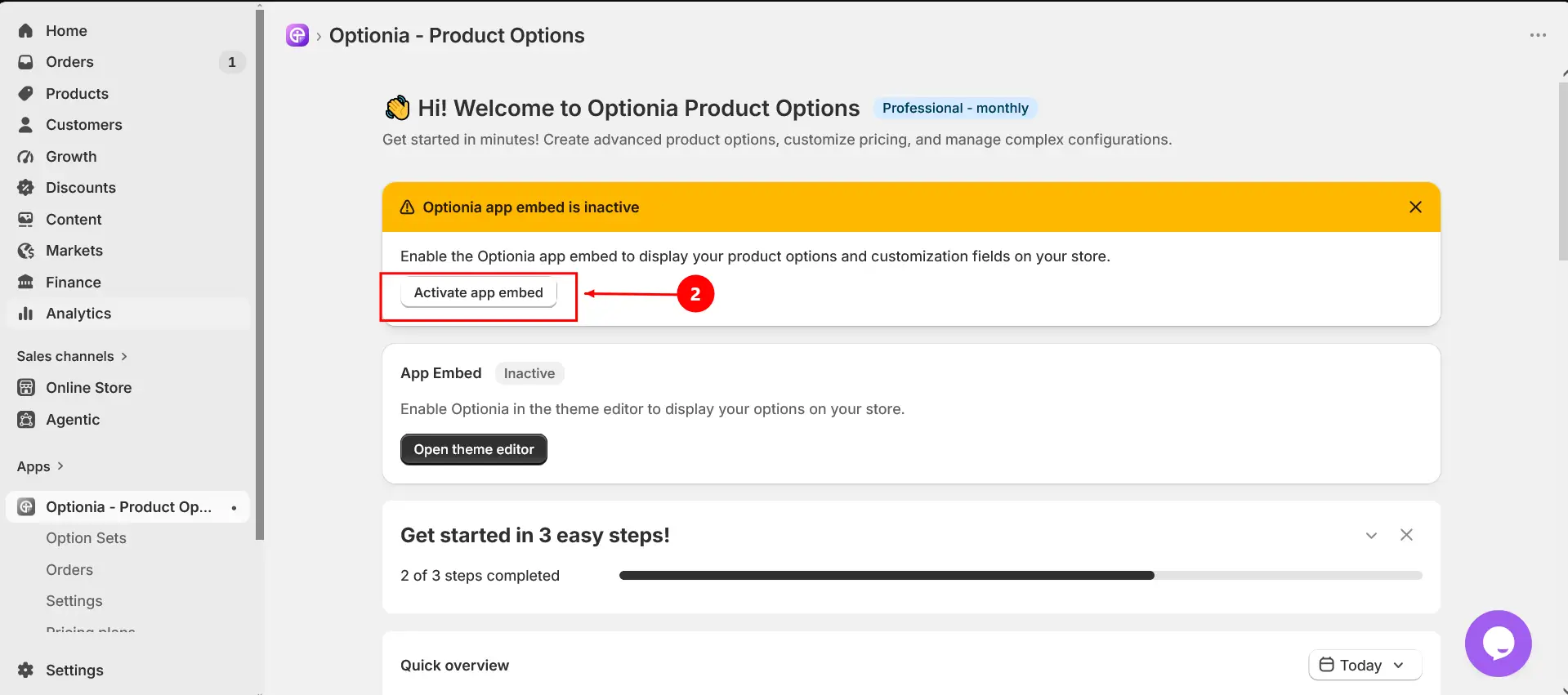
Click Activate App Embed to begin the activation process.
Step 3: Turn on Optionia
You will be redirected to the Shopify Theme App Embeds panel . Turn on the Optionia toggle to enable the app in your theme.
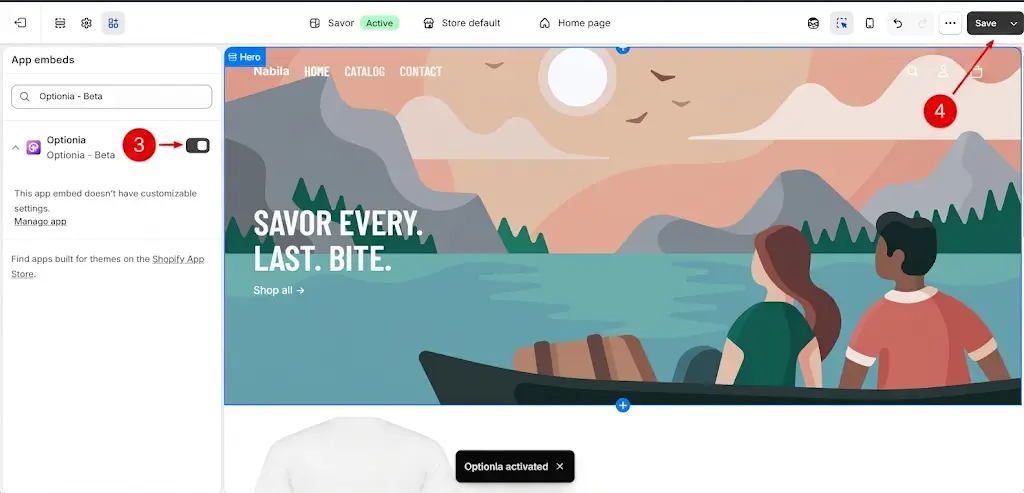
Step 4: Save Your Theme
Click Save in the theme editor to apply the changes. Once saved, Optionia will be successfully enabled in your storefront.
After Activation
After activating Optionia, you will see App Embed Active inside the Optionia dashboard.
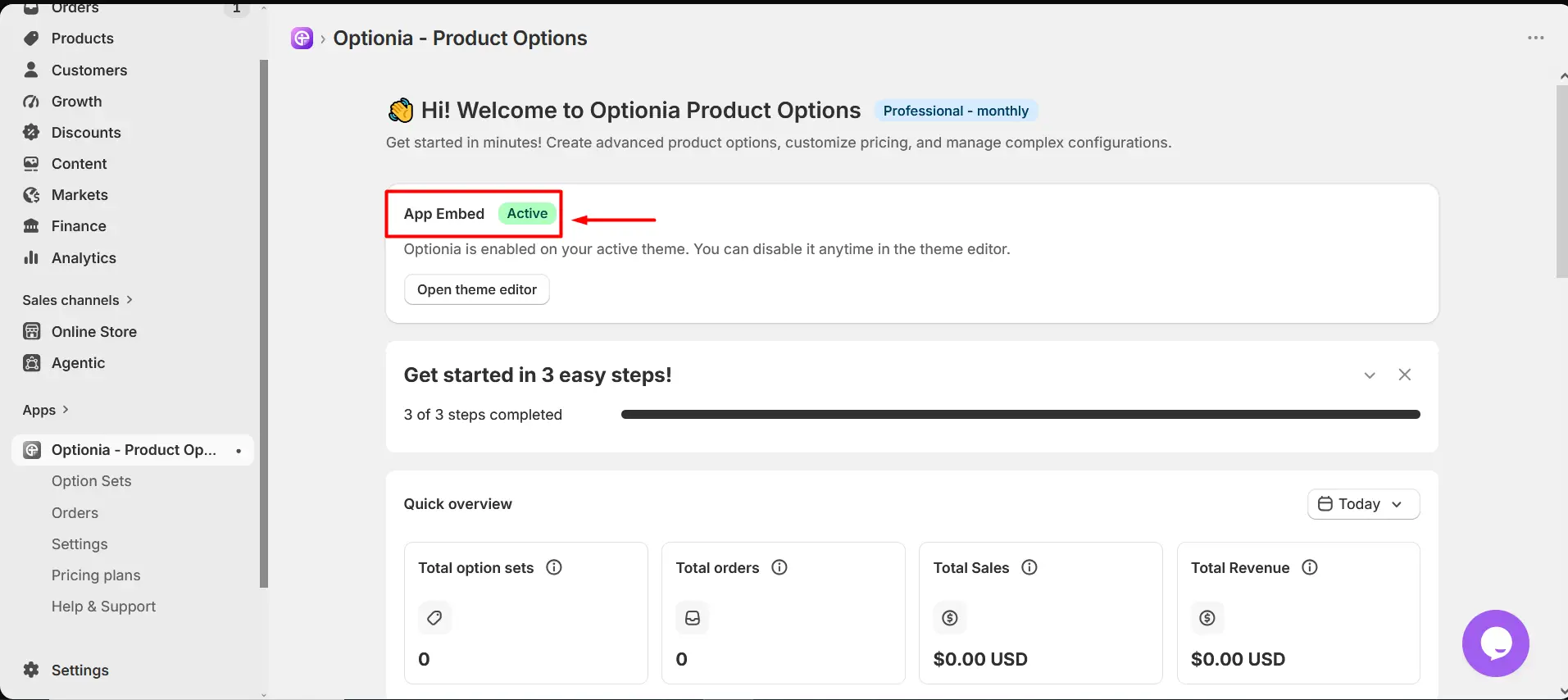
Once activated:
-
Product option fields will appear on your product pages
-
Customers will be able to interact with customization options
-
Option pricing and selections will be added to the cart and order
|
Important: Optionia must be connected to your theme to add option sets on your product pages. Without activation, the option fields will not appear on the storefront , even if you have already created option sets. |
Need help?
- Live Chat for quick assistance.
- Submit a Support Ticket for detailed questions or issues.
- Email: support@optionia.com